Your computer drags when storage fills up. Simple tasks like editing photos or joining video calls turn frustrating. That low-space warning pops up at the worst times.
Good news. You can fix this fast with built-in tools. These methods work on Windows, Mac, and Linux in March 2026. Tests show folks recover over 100GB easily. No lost files if you follow along.
Start by checking your drive. That step shows the biggest culprits.
See Exactly What’s Filling Your Drive Before You Start
Assess your storage first. This targets space hogs without guesswork. You avoid deleting the wrong things.
On Windows, open Settings. Go to System, then Storage. It lists apps, temp files, and system data by size.
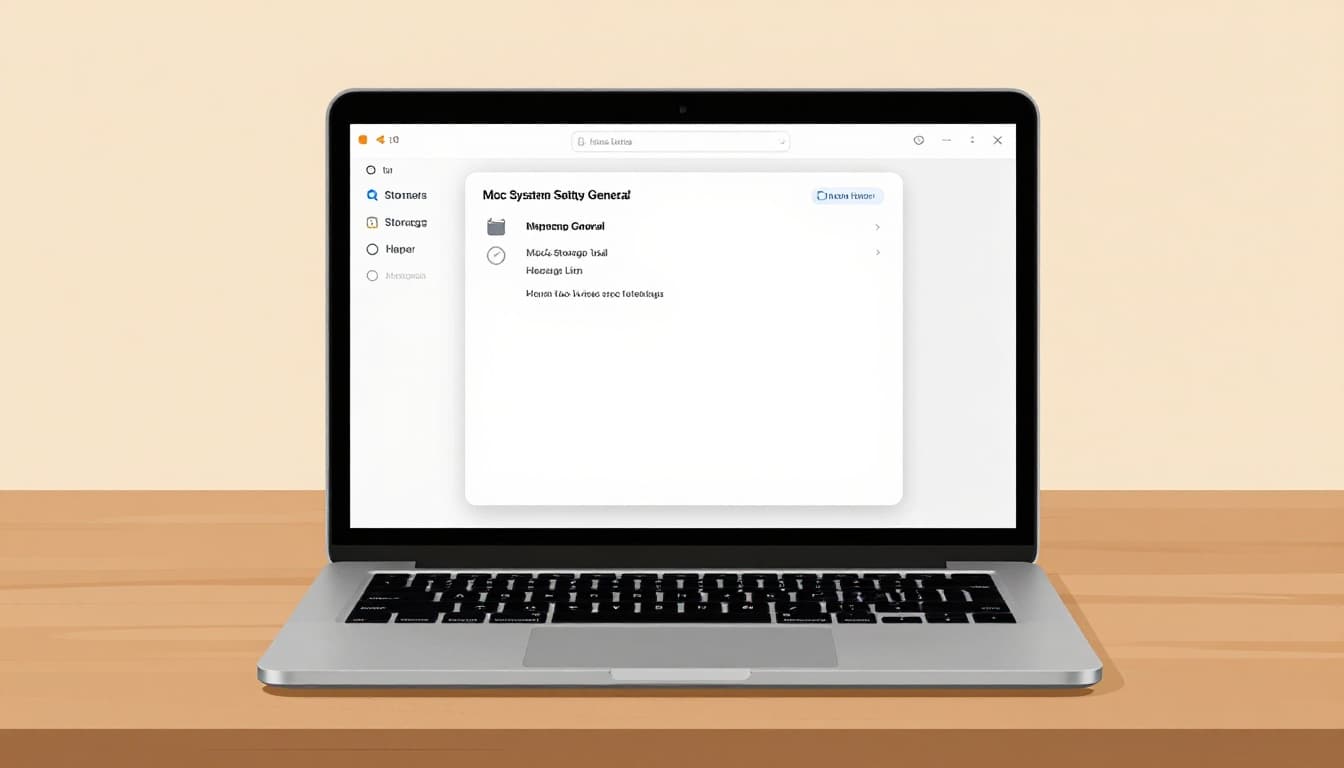
Mac users head to System Settings. Click General, then Storage. See breakdowns for apps, documents, and more.
Linux? Open a terminal. Type df -h. It shows drive usage. Or use your file manager like Nautilus for visuals.
Look for categories like temporary files or large downloads. Apps often hog the most space. Back up key files to cloud or an external drive before changes. This builds safety.
Now you know where to focus. Confidence grows from seeing the numbers.
Windows Tricks: Turn On Storage Sense and More for Quick Wins
Windows shines with auto-tools in 2026. Storage Sense runs quietly. It deletes junk on schedule.
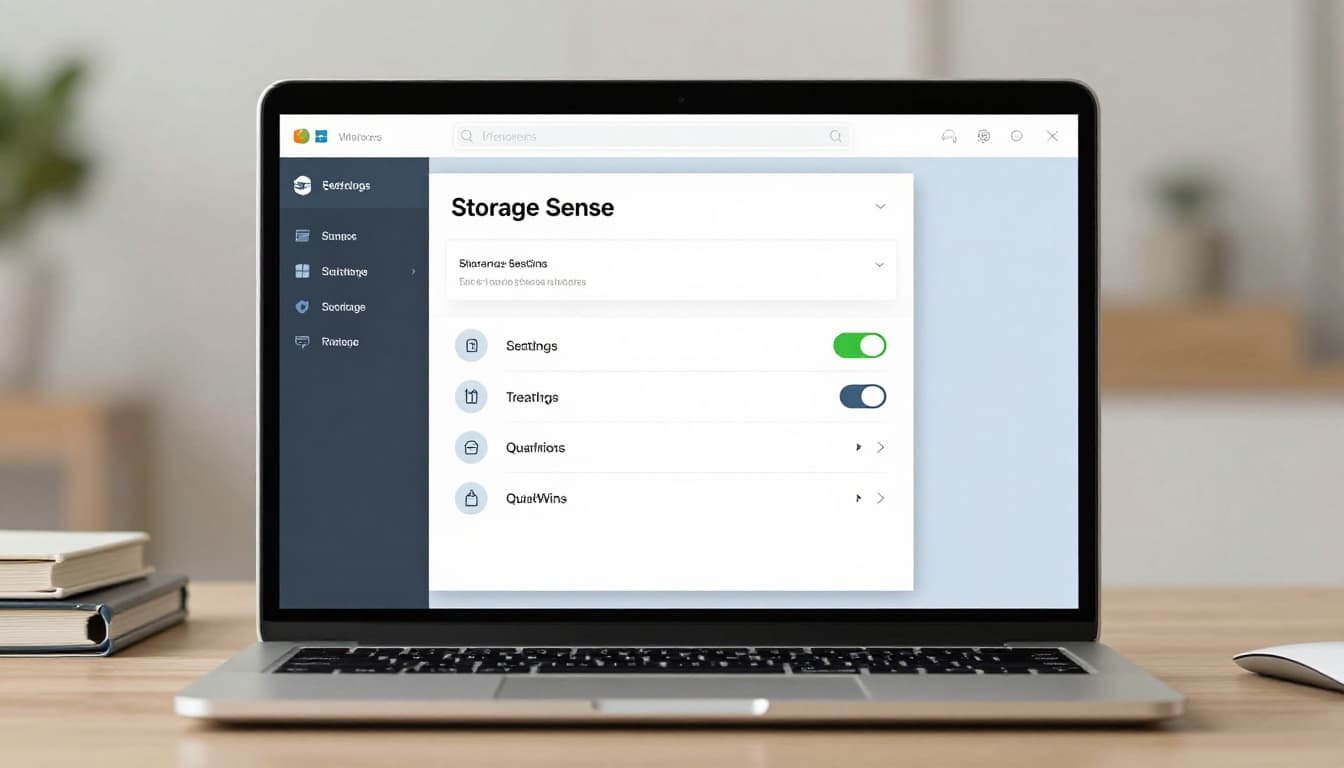
Open Settings. Navigate to System > Storage. Toggle Storage Sense on. Set it to clear Recycle Bin and temp files after days you pick. Run it manually too.
Disk Cleanup helps next. Search for it in Start. Select your drive. Check boxes for temp files, old updates, and system files. Click OK to wipe them.
Storage shows cleanup recommendations. Remove old app installs or large files from there.
Empty Recycle Bin always. Files sit there until you do.
Uninstall big unused apps. Go to Apps > Installed apps. Sort by size. Click three dots, then uninstall.
Bonus moves free even more. Press Windows key + R. Type %temp% and delete files. Skip locked ones. Disable hibernation with powercfg -h off in admin Command Prompt.
Compress your drive. Right-click C:, Properties, then Advanced > Compress contents. It shrinks files instantly.
These steps save 100GB often. No data loss if careful.
Hunt Down and Delete Hidden Temp Files Manually
Temp files pile up from apps and updates. They fill folders fast.
Press Windows + R. Type %temp%, hit Enter. Select all with Ctrl+A. Delete. Some files resist; skip them.
Check C:WindowsTemp and C:WindowsPrefetch next. Same process.
Relaunch Disk Cleanup after. It grabs system files too.
Your drive breathes easier. Speed improves right away.
Compress Folders or Move Them to Free Even More Space
Right-click a full folder. Choose Properties > Advanced > Compress contents. Or do it for the whole drive.
Access slows a bit. Still, space doubles fast.
Move files instead. Copy to OneDrive or external drive. Delete originals after upload confirms.
For details on enabling Storage Sense, check this Windows tutorial on auto-cleaning disk space.
Mac Cleanup: Apple’s Storage Tool Does the Heavy Lifting
macOS Tahoe and later pack smart storage help. No third-party apps needed.
Go to System Settings > General > Storage. It scans and shows categories. Apps lead often, then documents.
Click Recommendations. Optimize Storage for movies. It streams from iCloud. Delete large files listed.
Empty Trash. Right-click Dock icon, select Empty Trash. Or set auto-empty after 30 days.
Clear caches safely. Restart your Mac. That flushes some system data.
Uninstall apps by size. Drag to Trash from Applications. Or use Launchpad: hold Option, click X.
Offload to iCloud. Enable in Storage > iCloud. Manage space there.
Built-in tools boost speed too. Your Mac feels new.
Spot and Trash Large Forgotten Files Easily
Storage view sorts by size. Pick apps or documents tab.
Trash big downloads or old projects. Check ~/Library for caches, but delete carefully.
Use Spacebar on folders in Finder. Preview contents quick. Spot junk fast.
Automate with recommendations. Turn them on for ongoing help.
Gigabytes vanish in minutes.
Linux Power Moves: Terminal Commands to Wipe Junk Fast
Linux gives power users control. Terminal commands shine in Ubuntu 26.04 and similar.
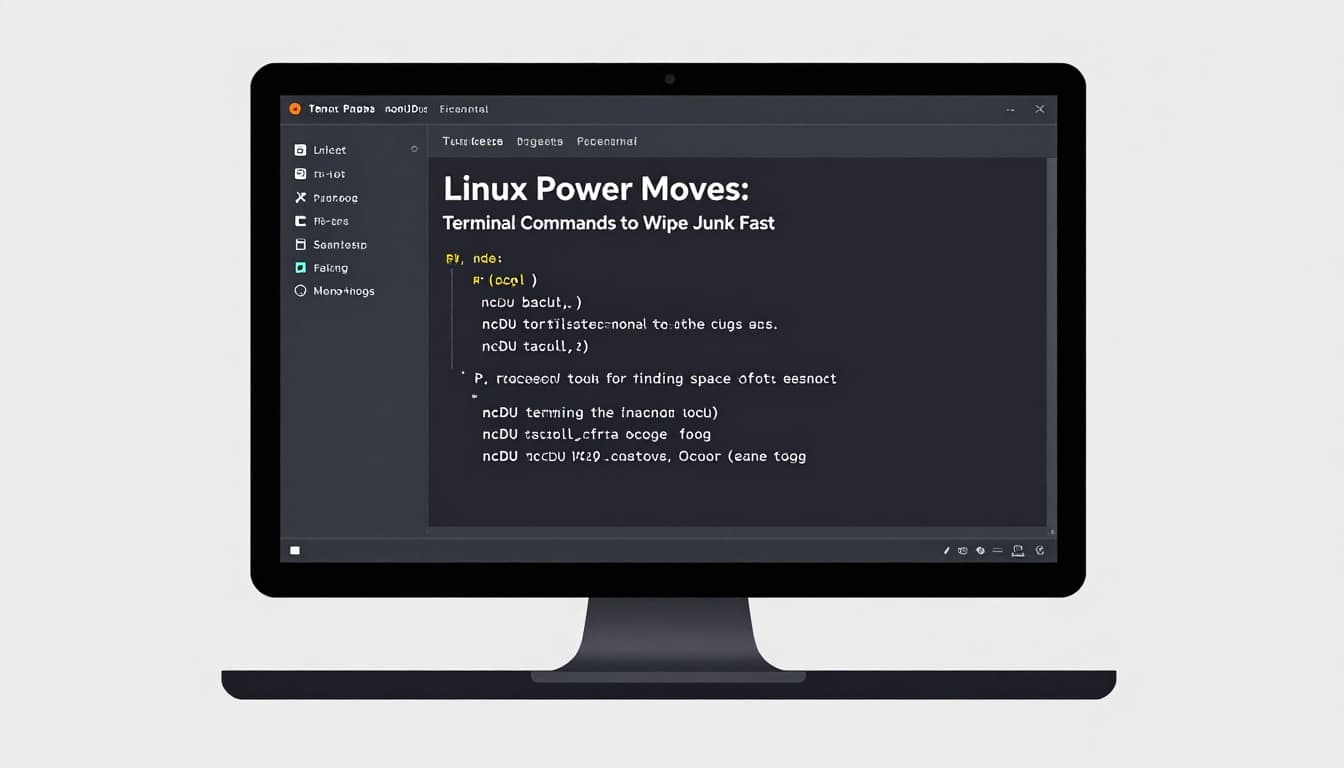
First, find big files. Type du -sh ~/* | sort -hr. It lists home folders by size.
Run sudo apt autoremove for old packages. Then sudo apt clean for downloads.
Empty Trash: rm -rf ~/.local/share/Trash/*.
Clear temp: sudo rm -rf /tmp/*. Wipe cache: rm -rf ~/.cache/* after apps close.
Uninstall with sudo apt remove package-name.
Use GNOME Disks for GUI if terminal scares you.
Caution matters. Double-check before sudo deletes.
These free GBs quick. Systems stay lean.
Visualize Space Hogs with ncdu for Smarter Deletes
Install ncdu first. Run sudo apt update && sudo apt install ncdu.
Launch with sudo ncdu /. Arrows navigate. Enter opens folders. ‘d’ deletes after confirm.
It shows bars for sizes. Press ‘s’ to sort.
Safer than blind removes. See this ncdu install guide for Ubuntu.
Deletes target real hogs.
Habits That Keep Your Computer’s Storage Free Forever
One cleanup won’t last. Build routines instead.
Run storage checks weekly. Set reminders.
Keep drives under 80% full. Speed drops above that.
Move media to external SSD or cloud. Photos and videos grow fast.
Uninstall apps monthly. Sort by size regular.
Auto-empty Trash or Recycle Bin. Set schedules where possible.
These habits beat one-offs. Your computer stays fast.
For ongoing tips, see TechTarget’s disk space habits.
Storage Sense on Windows, Storage tool on Mac, and ncdu on Linux deliver the biggest wins. Pick one step today. Your PC runs smoother right away.
Freed space yet? Share in comments what worked best. Subscribe for more tweaks to free up storage space on your computer. Less clutter means less stress.