
Your phone lags right in the middle of a call. Or your laptop freezes during a video meeting. These frustrations hit everyone.
Restarting gives your device a clean slate. It clears memory junk, stops stuck apps, refreshes cache, and resets connections. You’ll see quick fixes for slowdowns, crashes, and glitches. Recent Android updates in March 2026, like the Pixel Drop, left some users with frozen screens until they restarted.
What makes this simple step so powerful? Let’s break it down.
How Restarting Clears Clogged Memory and Speeds Things Up
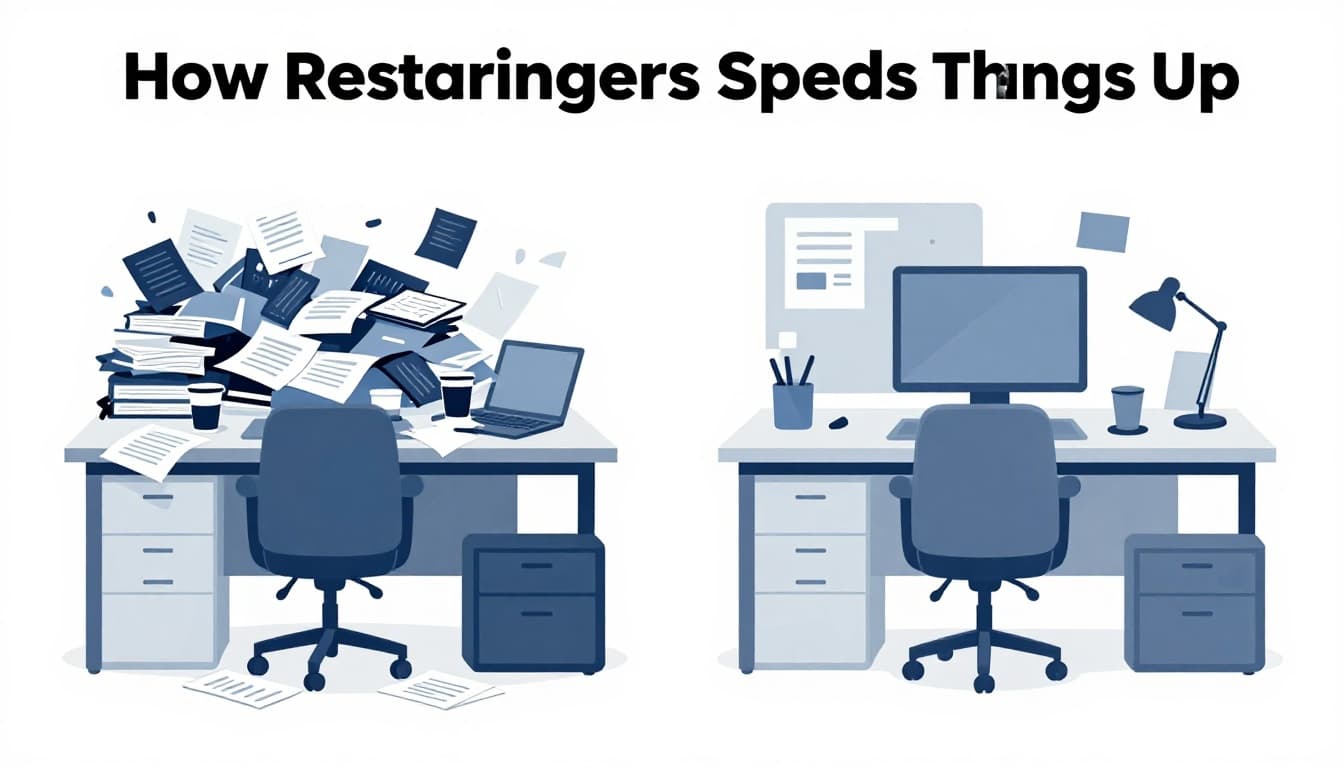
RAM holds data for apps you run. It fills with temporary files and errors over time. Think of it like a messy desk piled with papers. You work slower because you hunt for space.
Restarting wipes RAM clean. It frees resources so your device runs smooth again. Slowdowns vanish. Glitches stop. Your phone or computer feels snappier because nothing old clogs the works.
Why RAM Buildup Happens Without You Noticing
Multiple apps stay open in the background. Updates run quietly. You browse tabs that pile up. Small leaks add up fast.
For example, switch between email, social media, and maps. Each leaves bits behind. Soon, your device stutters. How-To Geek details how app remnants fill RAM. You don’t see it build, but it slows everything.
Background tasks like cloud sync worsen it. Phones multitask more now. So do laptops with dozens of tabs.
The Instant Speed Boost You Feel Right After Restarting
Everything reloads fresh. No junk weighs it down. Apps launch quicker. Battery lasts longer because resources flow free.
On phones, scrolling feels buttery. Computers handle tasks without hitches. That “like new” speed comes from a blank RAM slate. Try it after heavy use. You’ll notice right away.
Stopping Stuck Processes That Hog Your Device’s Power
Apps get trapped in loops. Background tasks crash without warning. They hog CPU and drain battery. Your screen freezes. Or the device overheats.
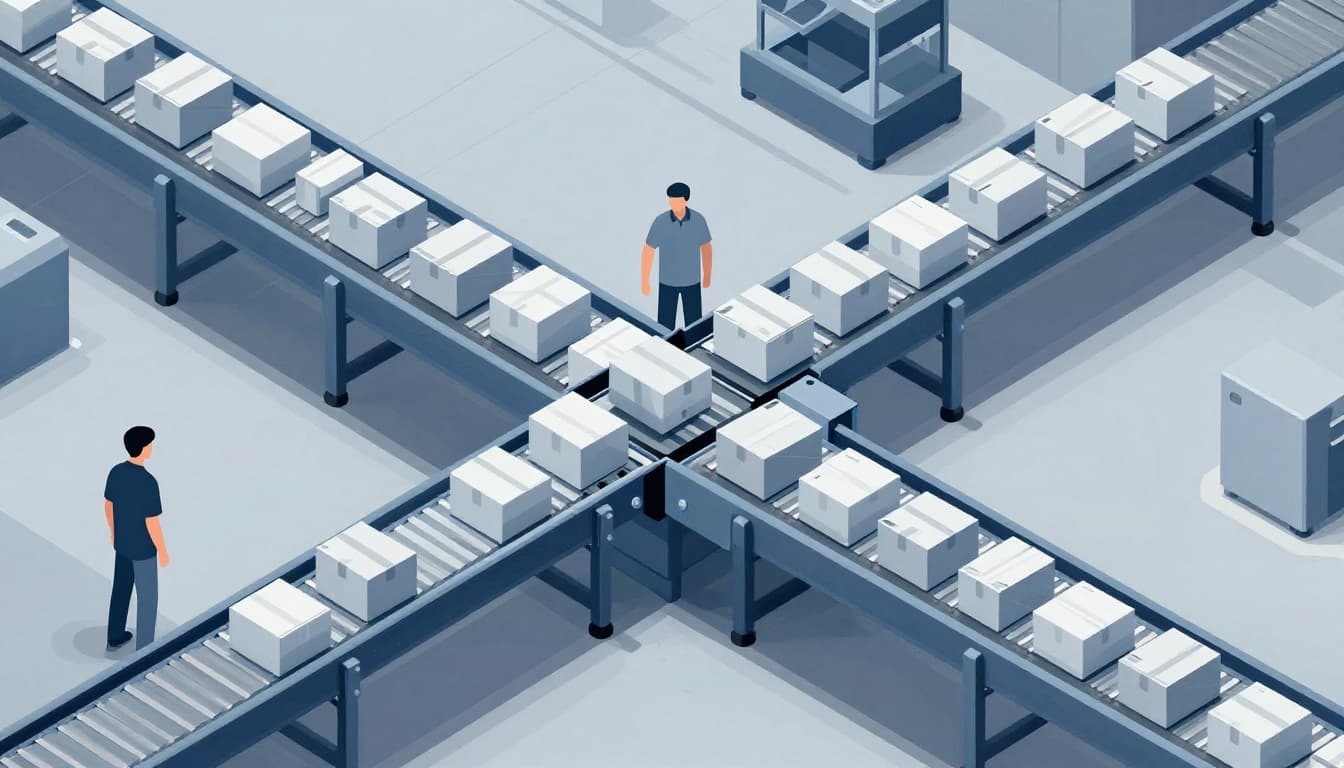
Restart kills every process. It reloads them fresh. Like clearing a jammed conveyor belt, your device breathes again. Freezes end. Crashes stop.
Spotting Signs of Zombie Processes on Your Phone or Laptop
Apps won’t respond. Fans spin loud on laptops. Battery drops fast. Check task manager; rogue tasks eat power.
Phones show “not responding” pop-ups. Heat builds during idle time. These zombie processes linger after crashes. OneUpTime covers fixing them on Linux systems, but the idea fits phones too. Restart nukes them all.
Refreshing Corrupted Cache to End Weird Errors
Cache stores images, settings, and data for quick access. It bloats or corrupts over time. Websites load wrong. Apps crash with odd errors.
Restart clears it out. Fresh data reloads. No more outdated glitches. Like dumping spoiled leftovers, everything tastes right again.

Slow pages or mismatched displays fix fast. Apps sync properly across your tools. In March 2026 updates, cache bugs caused display fuzz on Pixels. Restart sorted most cases.
Resetting Network Connections and Hardware Links
Wi-Fi drops mid-stream. Bluetooth skips on headphones. Printers ignore you. Software loses sync with hardware chips.
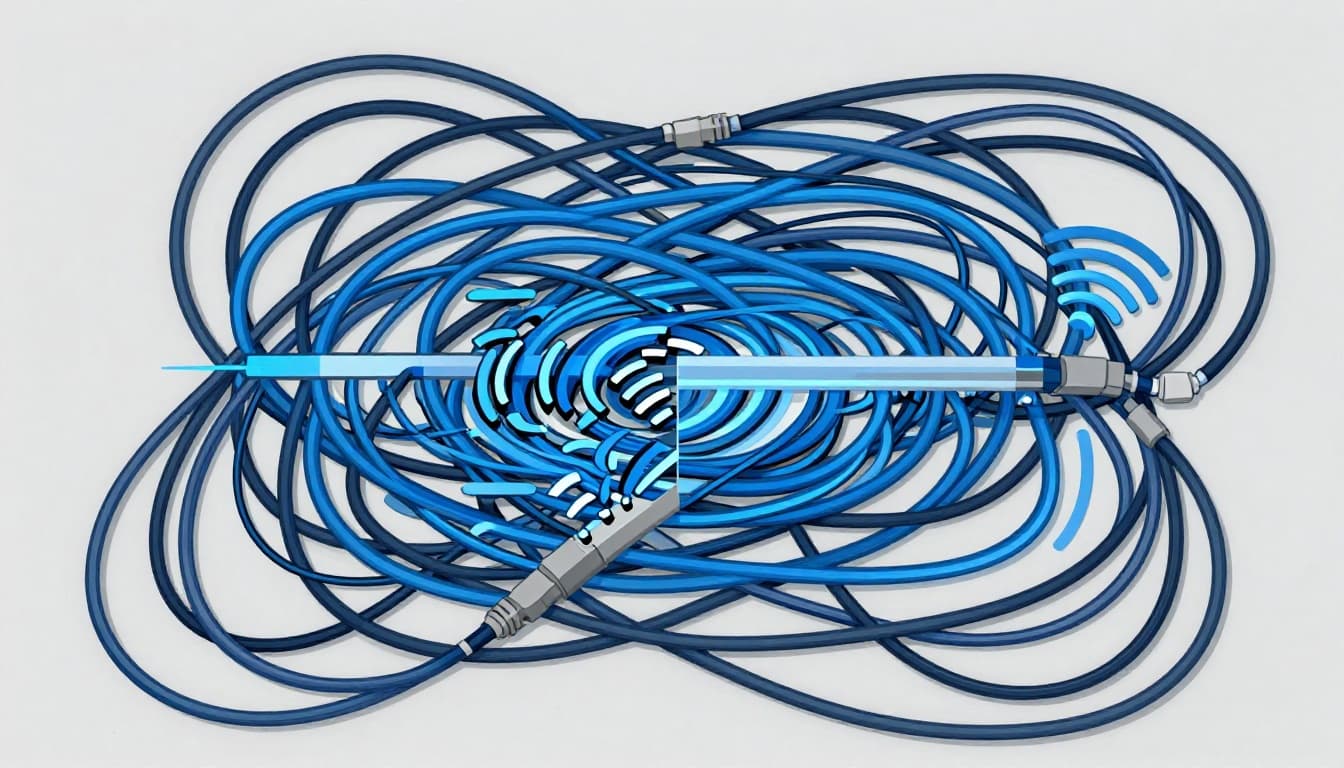
Restart reloads drivers and resets links. Connections stabilize. No need to unplug routers first. Sound returns. Internet flows steady.
Why Drivers Matter and How Restart Reloads Them
Drivers bridge software to hardware, like Wi-Fi chips or speakers. They glitch and corrupt. No sound or net follows.
Restart refreshes them without deep tweaks. TechBloat explains Wi-Fi adapter resets on Windows. Home offices benefit most. Streaming works flawless.
Ensuring Updates Actually Stick After a Restart
Patches install half-done without restart. Vulnerabilities linger. Bugs persist. March 2026 Pixel fixes needed reboots for full effect.
Restart applies changes fully. Security locks in. Stability returns. Always reboot after updates. It prevents pile-ups.
Restarting clears memory clogs, stops stuck tasks, refreshes cache, resets networks, and seals updates. Make it weekly. Set auto-restarts if you forget.
Pro tip: If hardware fails persist, check for repairs. Otherwise, this habit saves time.
Try restarting now. Notice the difference? Share your fixes in the comments.