Your computer freezes mid-email. Or it takes ages to load that game. In 2026, with AI tools and constant updates, a slow PC frustrates everyone.
Millions face this. Cluttered software or low RAM often causes it. You can fix most issues with built-in tools. No expert skills required.
We’ll start by diagnosing problems. Then cover quick software tweaks, hardware checks, and 2026-specific tips like AI apps. Many speedups happen in under 30 minutes. Let’s get your PC running smooth again.
Pinpoint the Problem Using Task Manager
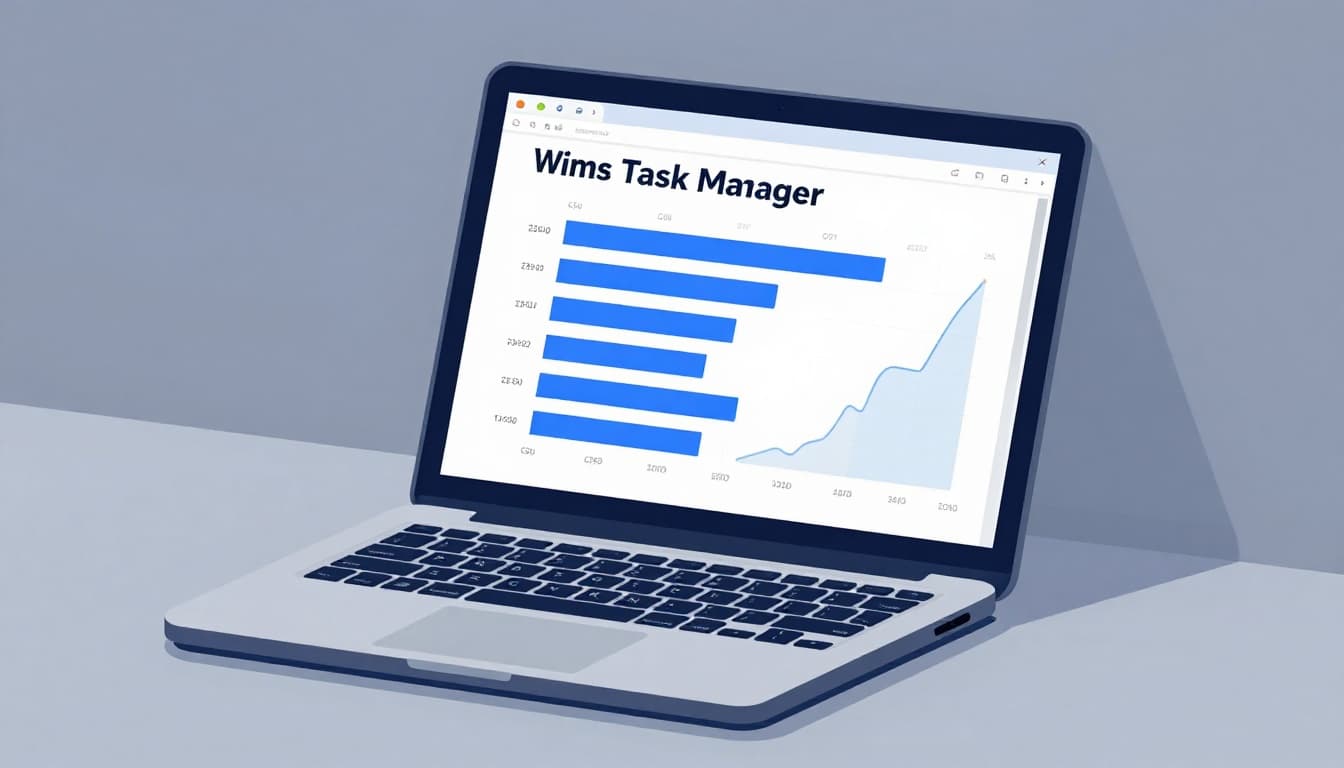
Task Manager reveals why your computer lags. Press Ctrl + Shift + Esc on Windows to open it fast. Mac users open Activity Monitor instead.
This tool shows real-time CPU, RAM, and disk use. High spikes point to culprits. Check it weekly to stay ahead.
Check Processes for Resource Hogs
Click the Processes tab first. Sort columns by CPU, Memory, or Disk. Apps at the top hog resources.
For example, Chrome with 20 tabs might hit 50% CPU. Or an AI chatbot eats RAM. Right-click it. Select End task if safe.
Never close system processes like explorer.exe. They crash your PC. Instead, note the name and Google it.
End extras like Spotify or cloud sync when idle. This frees resources instantly. For deeper tips on this tab, see MakeUseOf’s guide to Task Manager tabs.
Review Performance and Startup Tabs
Switch to Performance. Graphs track usage over time. Disk at 100% means storage bottlenecks. RAM over 80% signals upgrade time.
Startup tab lists auto-launch apps. Weather widgets or chat tools slow boot. Right-click and disable unneeded ones.
Windows 11 compresses memory to help. Still, monitor trends. Restart your PC weekly. It clears temporary hogs.
Clear Software Clutter for Instant Speed Gains
Software issues cause 80% of slowdowns. Background apps, full drives, and malware pile up. Free tools fix them fast.
Restart after changes. Test speed before and after. Most users see gains right away.
Shut Down Extra Browser Tabs and Background Apps
Tabs multiply fast. Each runs scripts. Close all but essentials.
In Task Manager, end tasks for idle apps like messaging tools. Go to Startup tab. Disable refresh-heavy widgets.
Settings > Apps > Startup toggles them off too. Fewer apps mean quicker response. Background syncs wait until needed.
Free Up Space with Disk Cleanup
Full storage slows searches. Keep drives under 85% full, especially with AI files.
Search “Storage Sense” in Windows Settings. Turn it on. It auto-deletes temps and old downloads.
Run Disk Cleanup too. Select system files. Wipe updates cache and thumbnails. For a full tutorial on Storage Sense, check this guide.
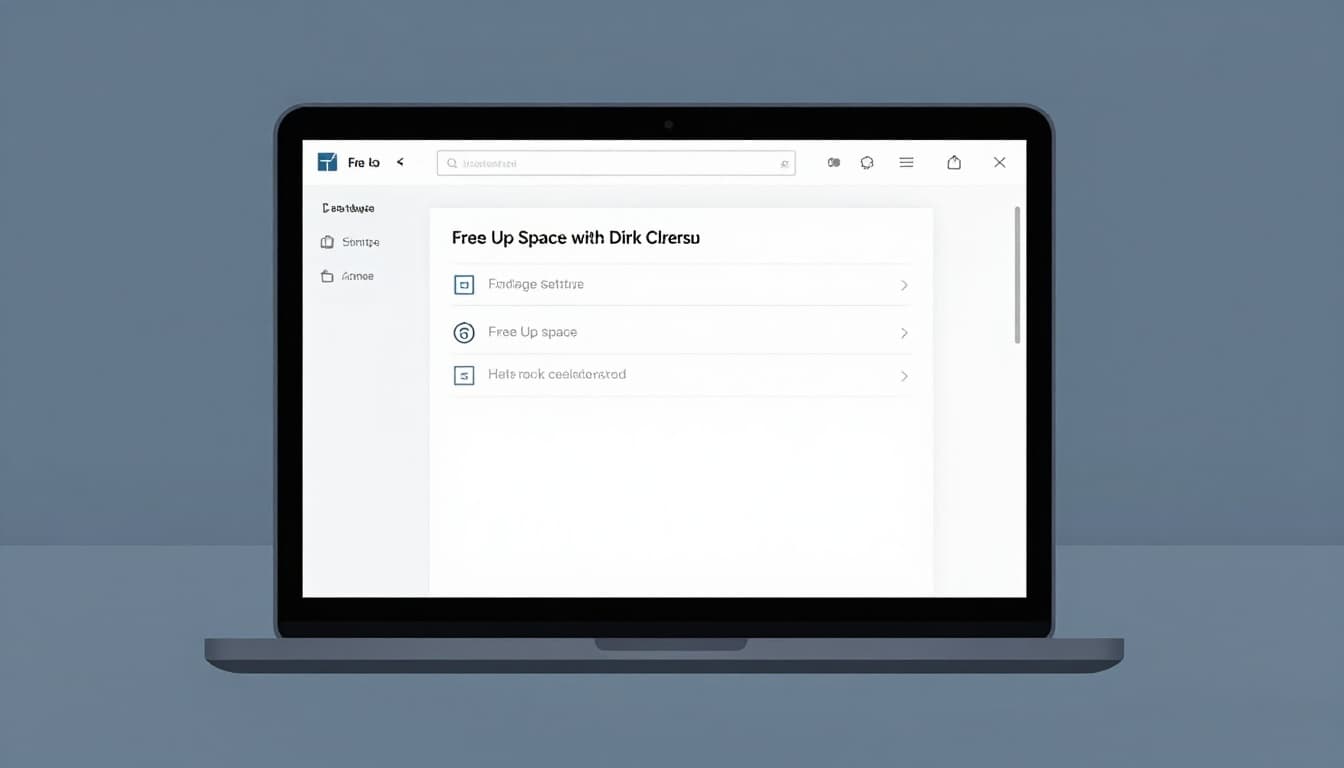
Freed space speeds file access. Run monthly.
Scan for Malware and Pause Disruptive Updates
Malware mines crypto silently. It spikes fans and CPU.
Open Windows Security. Run a full scan. Or grab Malwarebytes free scanner for extras.
Pause updates in Settings > Windows Update. They hog disk during installs. Clear cache after.
No shady cleaners. They add risks.
Fix Hardware Limits and Beat the Heat
Hardware wears out. Low RAM or dust builds up. Simple tweaks help first.
In 2026, AI demands 16GB RAM minimum. Check yours in Task Manager.
Boost with More RAM or Compression Tricks
RAM under 8GB struggles now. Task Manager shows usage. Over 80% constant? Upgrade.
Add 16-32GB DDR5. Laptops often allow swaps. For steps, read this laptop RAM guide.
Windows compresses RAM as a temp fix. Enable in advanced settings. But real modules beat it.
Costs rose with AI demand. Still cheaper than new PCs.
Clean Dust and Prevent Overheating
Dust clogs vents. Fans spin loud, then throttle speed.
Buy compressed air. Power off. Blast vents gently. Use flat surfaces for airflow.
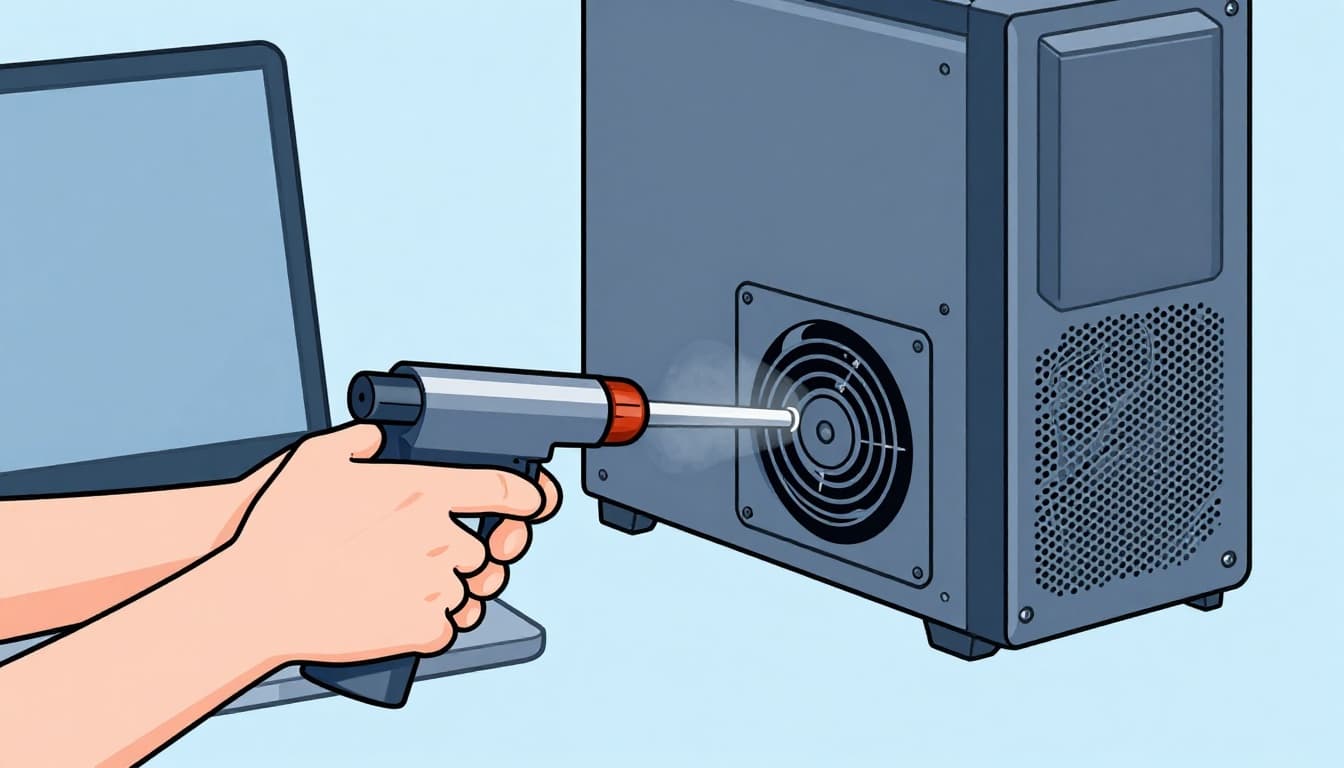
Clean every six months. Old hardware heats fast with new apps.
Handle 2026 Trends Like AI Apps and Windows 11 Hiccups
AI desktop tools and updates cause new lags. Indexing rebuilds after changes.
Microsoft’s March 2026 patch cuts RAM use. Update first.
Tame Resource-Hungry AI Software
Local AI like Copilot spikes RAM. Graphs in overlays confirm it.
Close when idle. Offload to cloud versions. Disable in Settings > Apps.
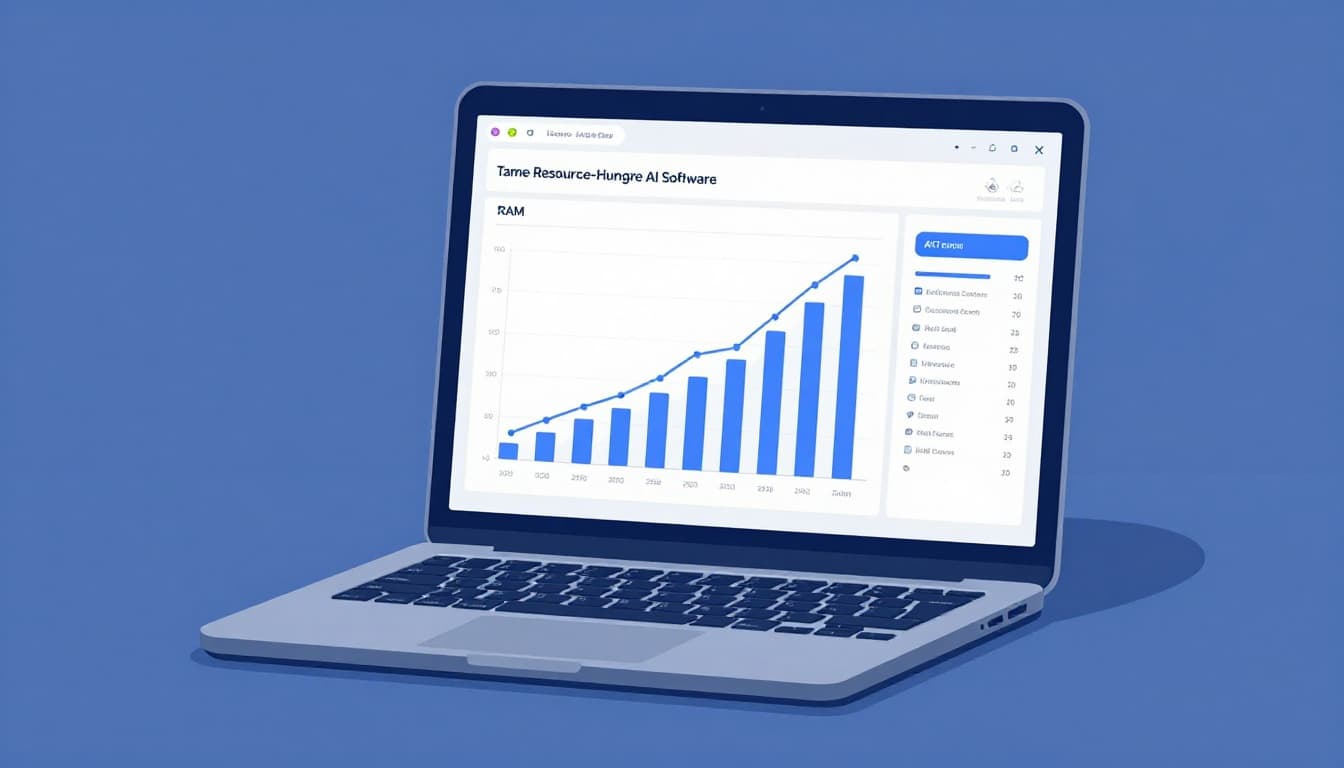
For Copilot tweaks, see Microsoft’s update details.
Optimize Windows 11 for Peak Speed
Post-update, restart twice. Indexing finishes in hours.
Search “Performance options.” Choose best performance. It skips animations.
Update GPU drivers in Device Manager. High-performance power plan helps too.
Aim for 4GHz CPU, 1TB NVMe SSD. 2025 laptops with AI chips handle it best.
Diagnose with Task Manager first. Clear clutter next. Hardware follows if needed.
Most fixes take minutes. Restart weekly. Monitor usage.
Persistent issues? Upgrade RAM over buying new. Your PC deserves another shot.
Try one tip today. What fixed your slowdown? Share below. Your machine runs like new soon.