You hit the power button on your computer, eager to dive into work or check emails. But minutes drag by. Your desktop finally appears after what feels like forever, and you’ve already missed a call or fallen behind on your day.
Slow startups frustrate everyone. Startup apps hog resources, junk files clog your drive, outdated software drags things down, and aging hardware struggles to keep up. The good news? You can speed up computer startup time with fixes that take under 10 minutes. Expect 30-60% faster boots, often slashing 60 seconds down to 10-15.
We’ll start with why it happens and quick checks to diagnose your setup. Then, grab step-by-step tweaks for Windows 11 and macOS Tahoe 26 or later, plus hardware upgrades and top tools. Bookmark this now, time your current boot from power button to ready desktop, and let’s make your computer wake up fast.
Pinpoint the Hidden Reasons Your Computer Starts So Slowly
Your computer boots slow because common issues pile up behind the scenes. Recent 2026 data shows too many startup programs top the list; they hog memory and add 30 seconds or more if you have 20+ apps firing up. Next come full drives lacking 20% free space, malware sneaking in, old HDDs instead of SSDs, low RAM under 16GB, outdated drivers, and even dust in fans. For example, a cluttered drive forces your system to hunt for files like a dog digging through trash.
First, time your current boot. Press the power button, note when the desktop appears ready for use. Restart weekly too; it clears temp files automatically. Now check these fixes. You’ll spot culprits fast and cut boot times in half.
Spot Startup Apps Eating Your Boot Time
Startup apps launch without asking and eat your boot time. Chat tools like Zoom or cloud sync from Dropbox often load first, using CPU right away. Disable them if you don’t need instant access.
On Windows 11, press Ctrl + Shift + Esc for Task Manager. Click the Startup tab. It lists apps with Startup impact ratings like High, Medium, or Low. Right-click high-impact ones, such as Spotify or Teams, and select Disable. Leave antivirus alone; it protects you. Check how to manage startup programs in Windows 11 for more tips.
For macOS Tahoe 26 or later, go to System Settings > General > Login Items. See apps set to open at login. Click the minus (-) button next to extras like messaging apps. Activity Monitor helps too; search for it, sort by CPU at startup. Avoid disabling system essentials.
Test results show disabling 5-10 apps shaves 20-40 seconds. Restart and time again.
Check If Storage or Malware Is the Culprit
A full drive slows reads during boot, especially with junk from caches and temps. Aim for 20% free space minimum; below that, your OS struggles. Malware hides too, running scripts that spike fans.
On Windows 11, right-click C: drive in File Explorer. Pick Properties to see free space. If low, run Storage Sense from Settings > System > Storage; it clears junk. For malware, open Windows Security (search it), go to Virus & threat protection, and select Scan options > Full scan. It checks everything.
macOS users, click Apple menu > About This Mac > Storage. Manage button shows space used. XProtect scans automatically, but force a check via Software Update or restart. Clear caches manually: Finder > Go > Library > Caches, delete folders.
Restart weekly flushes more temp files. After cleanup, your boot feels snappier because the drive breathes easy. See why low disk space slows Windows 11 for details.
These steps reveal most issues. Your next boot proves it.
Easy Software Tweaks to Slash Startup Time on Windows 11 or 12
You already checked startup apps and storage space. Now try these simple software changes on Windows 11. They target boot delays directly. Most take under five minutes. Users report boots dropping from 45 seconds to 15 after these tweaks. Best part? No new apps needed at first. Let’s start with a built-in power saver.
Turn On Fast Startup for Hybrid Boot Magic
Fast Startup acts like a hybrid shutdown. It saves your system state to disk instead of closing everything fully. Next boot reloads that state fast. Expect 20-30% quicker startups, or 10-20 seconds saved on average hardware.
However, skip it if you dual-boot with Linux. It can block access to other drives. Also turn it off before driver updates or BIOS changes.
Follow these steps to enable it:
- Search “power options” in the Start menu. Click the top result.
- Select Choose what the power buttons do on the right.
- Click Change settings that are currently unavailable at the top.
- Check the box for Turn on fast startup under Shutdown settings. Click Save changes.
Restart right away. Time your boot from power button to desktop. Note the difference. If issues arise, repeat steps and uncheck the box.
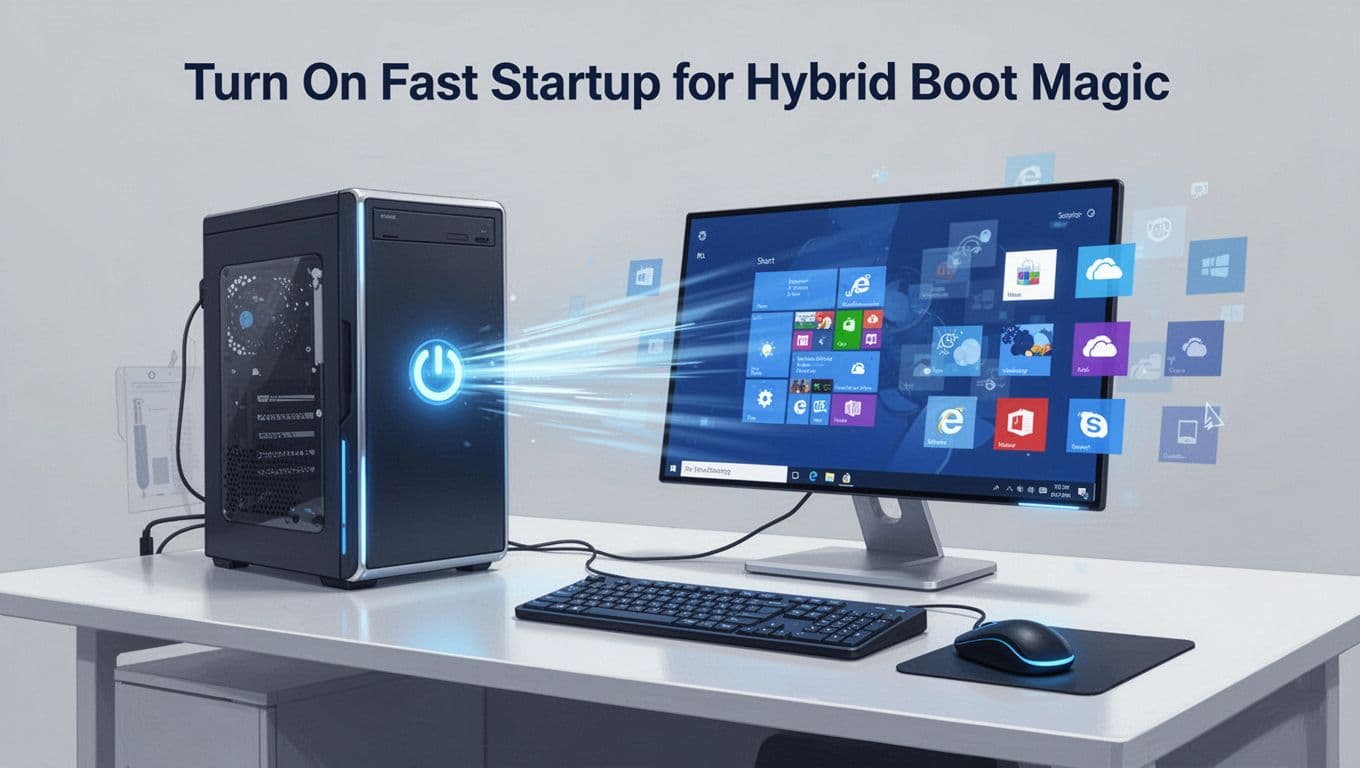
For full details, see Windows Central’s guide to Fast Startup on Windows 11. Test it yourself. Your PC wakes up smoother.
Update and Clean with Built-in Tools
Outdated code and junk files drag boots. Windows 11’s March 2026 update (version 26H1) already speeds app launches by 20%. Run updates first. Then clean up.
Start with Windows Update. Go to Settings > Windows Update > Check for updates. Install everything, including the March patch for Quick Machine Recovery. It fixes boot glitches automatically on Pro editions. Restart after.
Next, grab Microsoft PC Manager from the Microsoft Store. It’s free and scans junk, startups, and registry in one click. Open it, hit Health check, then Deep cleanup. It removes temps without touching files.
For command-line fans, open Command Prompt as admin. Run cleanmgr for Disk Cleanup. Pick C: drive, check all boxes like Temporary files. Then type dfrsgui to optimize drives; it trims SSDs for faster reads.
Before changes, note your boot time. After, reboot and compare. Free space jumps 5-10GB often, shaving seconds off loads.
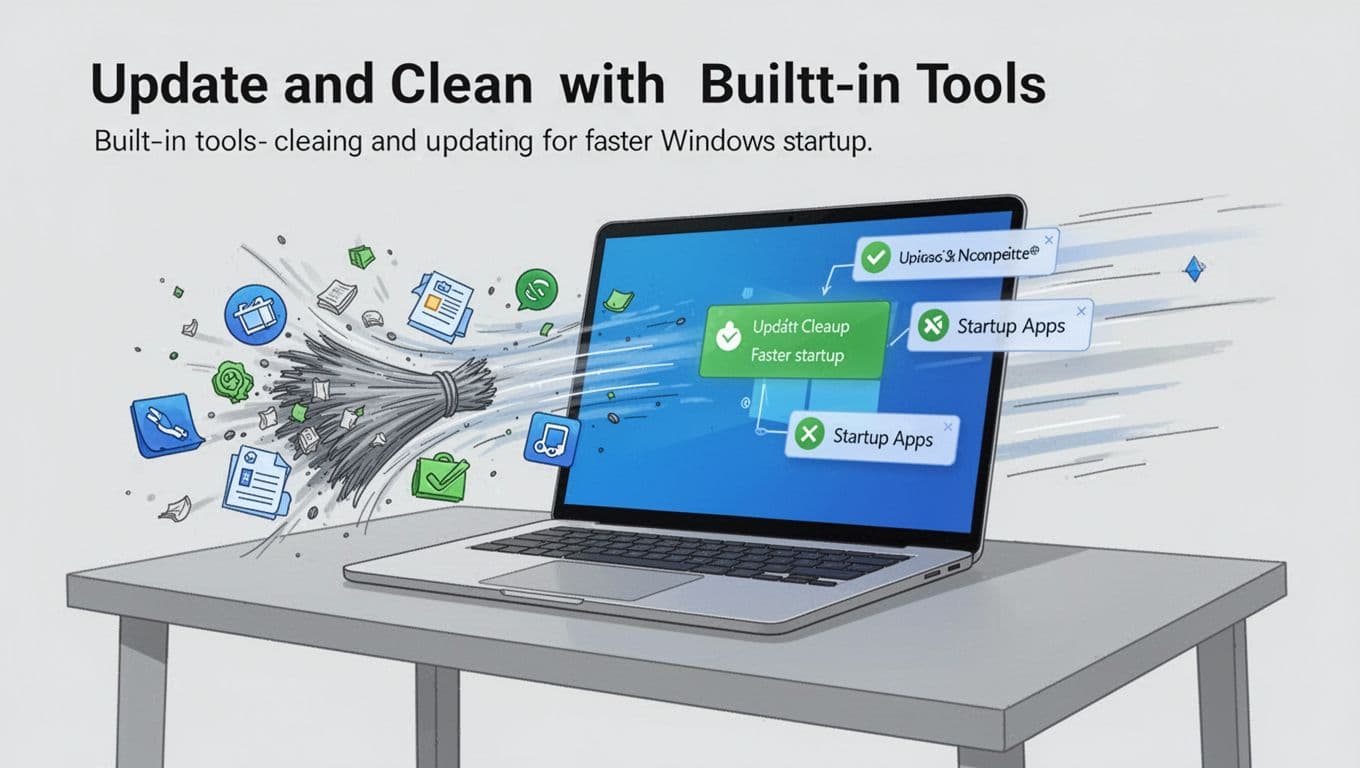
Try WIRED’s take on PC Manager for Windows speedups. These tools build on your earlier storage checks. Your system runs leaner now.
Streamline macOS Sonoma or Later for Lightning-Fast Boots
Macs boot faster than Windows machines right out of the box. M-series chips help a lot. Still, extra login items and built-up caches slow things down over time. You can fix that quickly. These tweaks take minutes and match Windows gains, often dropping boot times by 10-20 seconds. Newer versions like macOS Tahoe 26.4 shine after cleanup because Apple optimized them well. Start here for snappy startups.
Remove Unneeded Login Items and Clear Caches
Login items launch apps at boot, like Dropbox or Zoom. They steal seconds while you wait. First, cut them out. Then clear caches to free space and speed reads. Both steps build on your earlier checks.
Open System Settings from the Apple menu. Click General, then Login Items. Spot extras in the list, such as Dropbox sync or messaging apps. Select one and hit the minus (-) button below. Repeat for anything you don’t need right away. Also check Allow in the Background; turn off non-essentials there. Restart to test. Your boot skips those delays now.
Caches pile up from apps and browsing. They fill your drive fast. Go to Apple menu > About This Mac > Storage > Manage. Pick Reduce Clutter or Empty Trash Automatically. For deeper cleanup, hold Option while clicking Go in Finder. Choose Library > Caches. Drag folders to Trash, but skip system ones to stay safe.
Tools make it easier. Download free Onyx for automated cache sweeps, or try CleanMyMac for one-click fixes. They handle Sonoma, Sequoia, and Tahoe safely. After, run Disk Utility > First Aid on your drive.
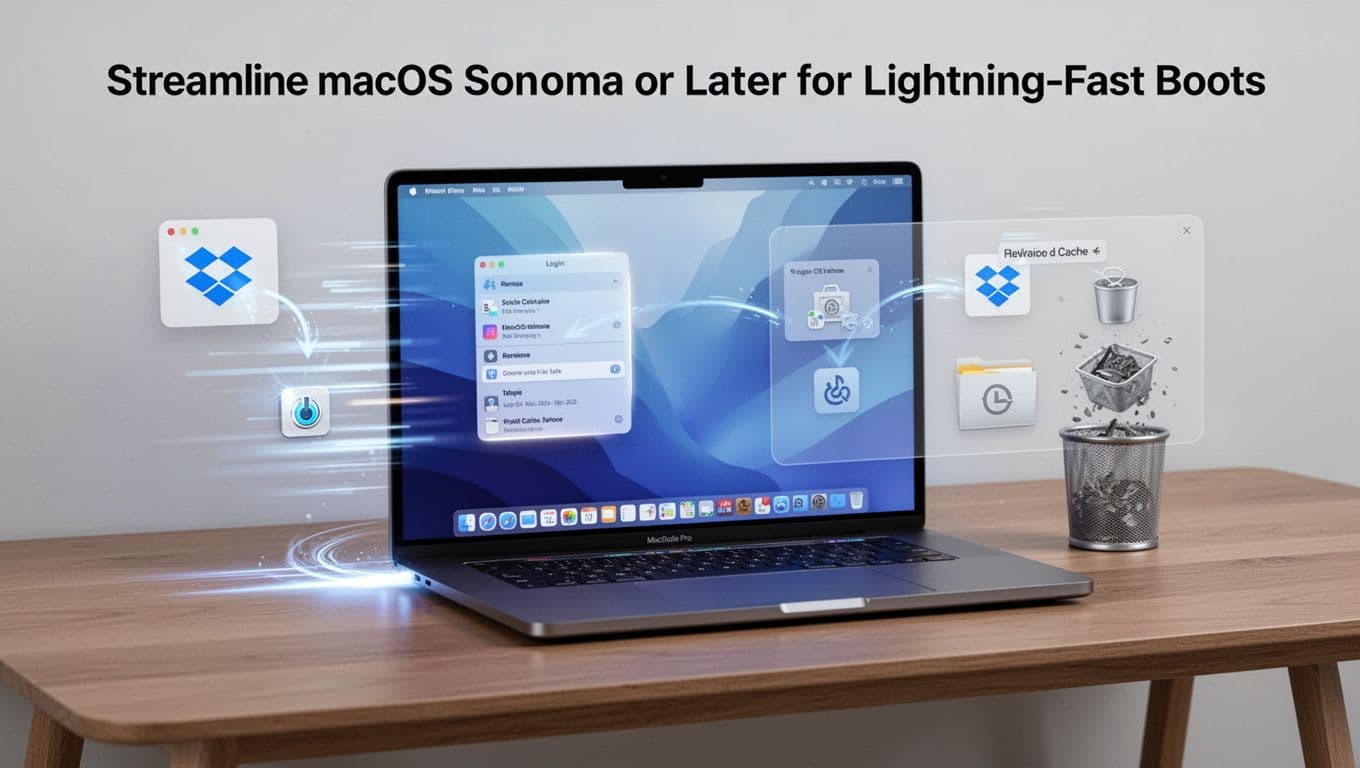
See Apple’s guide to removing login items for extras. Or check MacPaw’s cache clearing steps. Time your boot before and after. Macs feel even quicker now, especially compared to Windows tweaks. Next, update software for lasting speed.
Hardware Upgrades and Smart Tools for Lasting Speed Boosts
Software tweaks help right away. However, hardware upgrades deliver speed that lasts years. Swap your old HDD for an NVMe SSD and add 16GB+ RAM, and your boot drops to 5-20 seconds. Tests in 2026 confirm this beats HDDs by far, which take 30 seconds to 3.5 minutes. Dust cleanup adds more zip. These changes cost under $150 and pay off fast. Best of all, you avoid constant fixes.
Why an SSD and More RAM Change Everything
An NVMe SSD replaces slow HDDs with lightning reads. No moving parts mean instant file access during boot. A 1TB model runs $60-100, and modern desktops hit under 10 seconds after install. Laptops gain too. First, check your motherboard for an M.2 slot. Buy a PCIe 4.0 or 5.0 drive like Samsung’s latest.
Clone your old drive to avoid reinstalls. Connect the new SSD via USB enclosure, then use free Macrium Reflect. For desktops, slot it in, secure the screw, and boot from BIOS. Laptops need a bottom panel pop-off; ground yourself first. See this step-by-step NVMe install for desktops or cloning guide. Restart, set SSD as primary in BIOS. Boot time halves overnight.
RAM upgrades fight multitasking lag post-boot. Go for 16GB DDR4 or DDR5 kits at $40. Match your system’s speed and type via Crucial’s scanner. Desktops clip modules into slots after powering off. Laptops often have one easy-access panel. Push until clips snap. Verify in Task Manager. Meanwhile, clean dust from fans with compressed air; it prevents thermal throttling.
Users see 10-20 second boots on fresh setups. However, skip if your warranty blocks it.
Grab These Free Tools for One-Click Wins
Free tools automate upkeep after upgrades. They trim bloatware, estimate boot times, and optimize weekly. Uninstall extras like trialware first. Limit browser extensions too. Restart weekly to flush temps. Don’t overdo it; pick one tool max.
Here’s a quick comparison:
| Tool | Best For | Free? |
|---|---|---|
| Microsoft PC Manager | Windows junk cleanup, startups | Yes (Microsoft Store) |
| Fortect | All-in-one scans, repairs | Free version |
| Glary Utilities | Boot time estimator, tweaks | Yes |
| Ashampoo WinOptimizer | Deep optimization, privacy | Free version |
Microsoft PC Manager shines on Windows. Download, run Health Check. It clears 5-10GB junk in seconds, no hassle. Pros: Official, safe. Cons: Edge-focused browser clean. Setup takes one minute.
Fortect scans system-wide. Quick install, hit Start Repair. Pros: Malware catch. Cons: Upsells pro version. Others like Glary show exact boot savings pre/post-tweak.
Run monthly. Your upgraded rig stays at peak 10-20 second boots. Simple wins keep speed forever.
Conclusion
You started with a slow boot that stole your morning. Now you know the top fixes: disable startup apps for the biggest gains, enable Fast Startup on Windows for 30-60% quicker loads, and swap to an SSD for boots under 20 seconds. These steps cut frustration fast.
Pick two tweaks today, like trimming apps and running a cleanup. Time your boot before and after, then keep habits going: update weekly, restart often, and maintain 20% free space. Your setup stays speedy.
Is Fast Startup safe for SSDs? Yes, it works great as long as you keep space free and avoid dual-boots. Share your boot time wins in the comments below. What shaved seconds off yours? Subscribe for more tips on fast boot Windows 2026 and enjoy mornings without the wait.