Your video buffers during a crucial work call. Your smart lights flicker off mid-dinner. Or your phone drops Wi-Fi right when you need directions. These glitches hit hard in March 2026, especially with homes packing over 20 devices like thermostats, cameras, and 4K TVs all fighting for signal.
A router reset clears these jams. It refreshes connections without damaging hardware, but only if you do it right. Skip safety steps, and you lose custom settings or open security gaps. Smart home overload worsens it; signals clash on crowded 2.4 GHz bands, causing lags and drops.
This guide walks you through safe router resets with 2026 updates. You’ll spot issues, back up data, choose reboot types, handle top brands, secure setup, and dodge pitfalls. Follow these steps at home, and get stable Wi-Fi back fast.
Spot the Telltale Signs Your Router Needs a Reset
Slow speeds top the list. Pages load like molasses, even on fast fiber. Netflix stutters during prime time.
Frequent disconnects follow close. Devices drop off, then reconnect. Your laptop works fine, but the printer ghosts you.
Admin login fails too. Type 192.168.1.1 or similar, and it bounces back. Passwords you swear are right don’t click.
New devices won’t join. Phones say “no network,” despite strong bars nearby.
Unknown gadgets appear on your list. Check the admin page; strangers lurk because overload lets them slip in.
These signs scream trouble. In 2026, smart homes amplify them. Over 20 devices per US household create dead zones and clashes, per recent reports. Ignore them, and hacks or outages grow.
For more on Wi-Fi fixes, check WIRED’s 2026 troubleshooting guide.
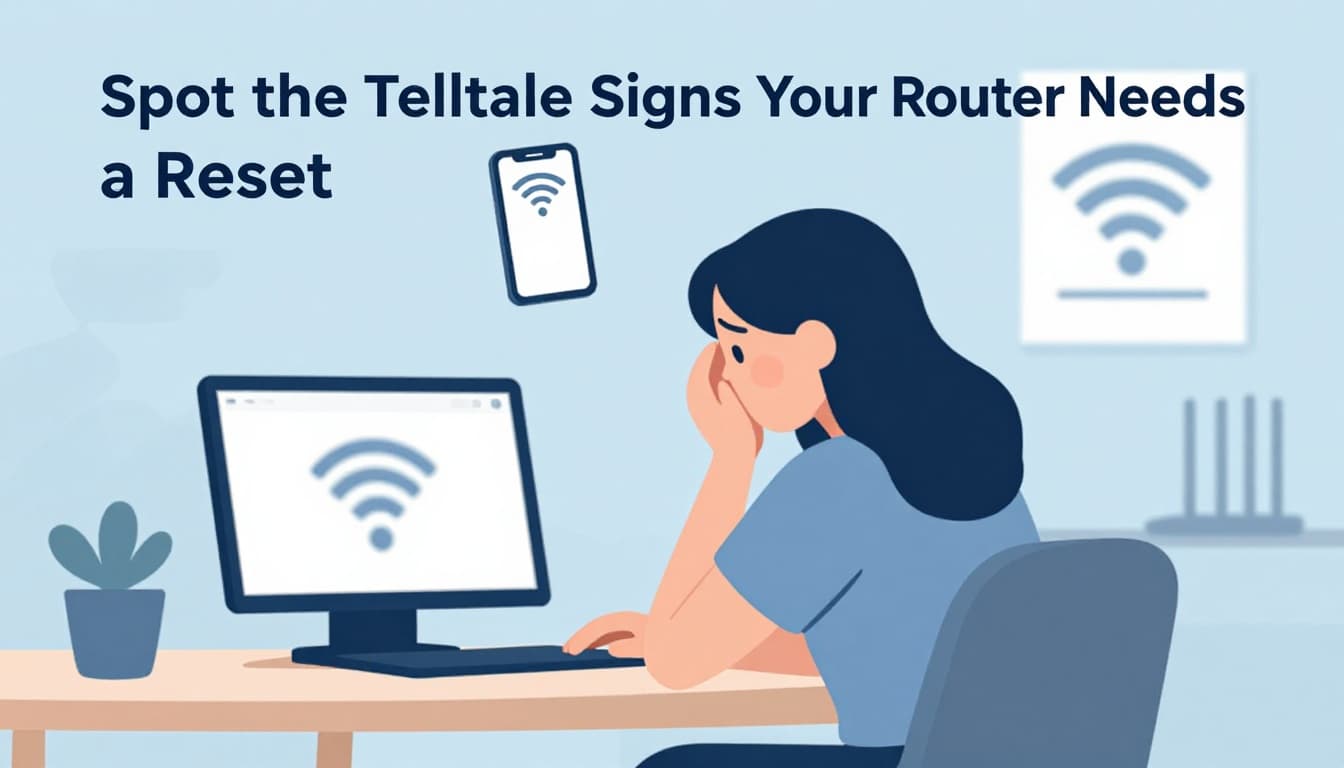
Spot these early. Test speeds on speedtest.net. Restart devices first. If issues persist, reset time nears.
Back Up Your Router Settings to Avoid Starting from Scratch
Prep saves hours. Log into the admin page first. Use 192.168.1.1, 192.168.0.1, or your model’s IP. Default login often reads “admin” for both fields.
Note key details. Jot SSID, Wi-Fi password, port forwards for security cams, and ISP credentials. Take screenshots of each tab.
Download backups where available. Go to System or Administration. Click “Backup” for a .cfg file. TP-Link and Netgear offer this; save it safe.
Update firmware too. Check the status page. Download latest from the maker’s site if needed. Fresh code fixes glitches.
Skip this, and you’ll retype everything post-reset. It takes minutes but pays off big.
See NETGEAR’s backup steps for details.
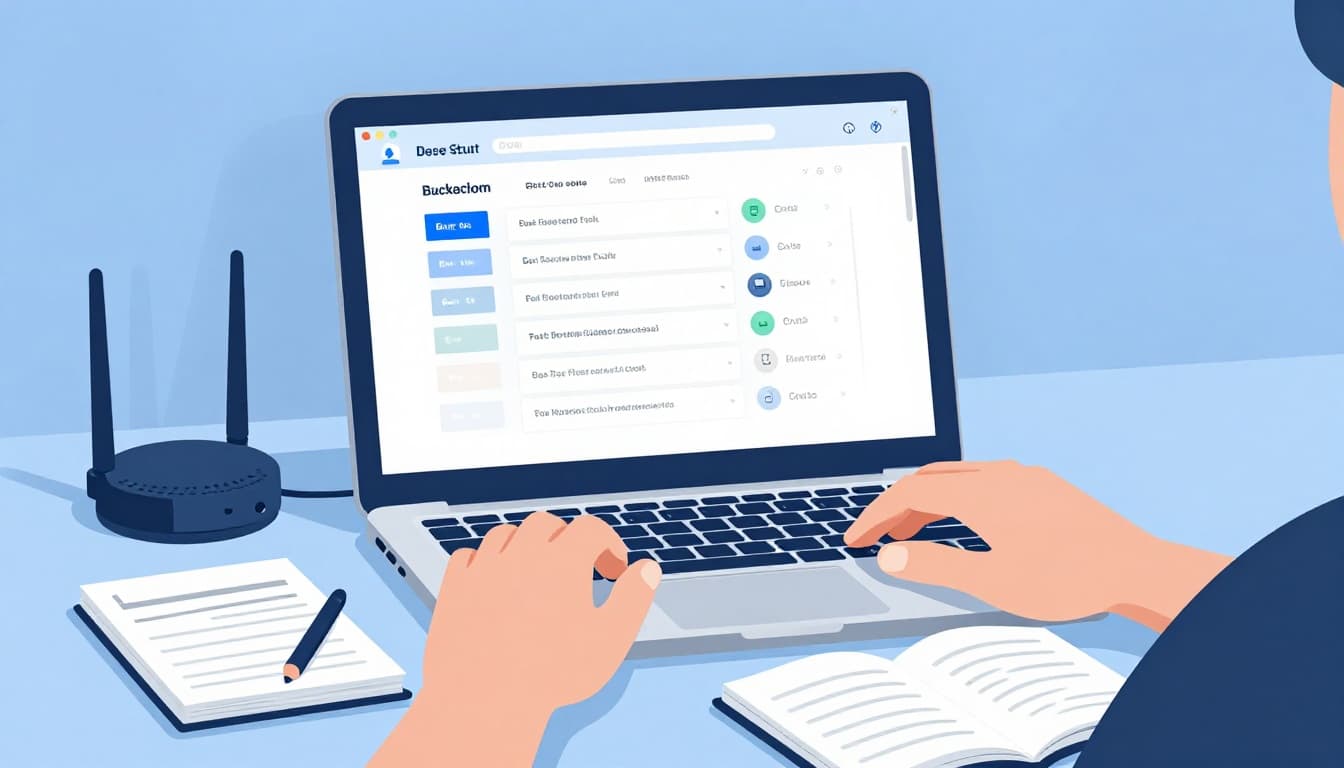
Backups keep you smooth. Print notes or store in cloud. Now you’re reset-ready.
Pick Your Reset: Soft Reboot or Full Factory Wipe
Soft reboots fix most glitches. They refresh memory without erasing data. Try this first.
Factory wipes erase all. Use them for deep issues like forgotten passwords or malware. But back up first.
Power on always. Wait full cycles. Avoid peak hours or updates.
In 2026, FCC rules ban new foreign routers from March 23 for security. Your current gear stays fine, so reset confidently.
Soft Reset Steps for Quick Fixes
Unplug the router. Count 30 to 60 seconds. This clears cache.
Plug back in. Watch lights cycle. Full boot takes 2 minutes.
Test connections. Devices rejoin auto. Speeds improve often.
Repeat twice if needed. But move to factory if no luck.
Factory Reset: When and How to Do It Right
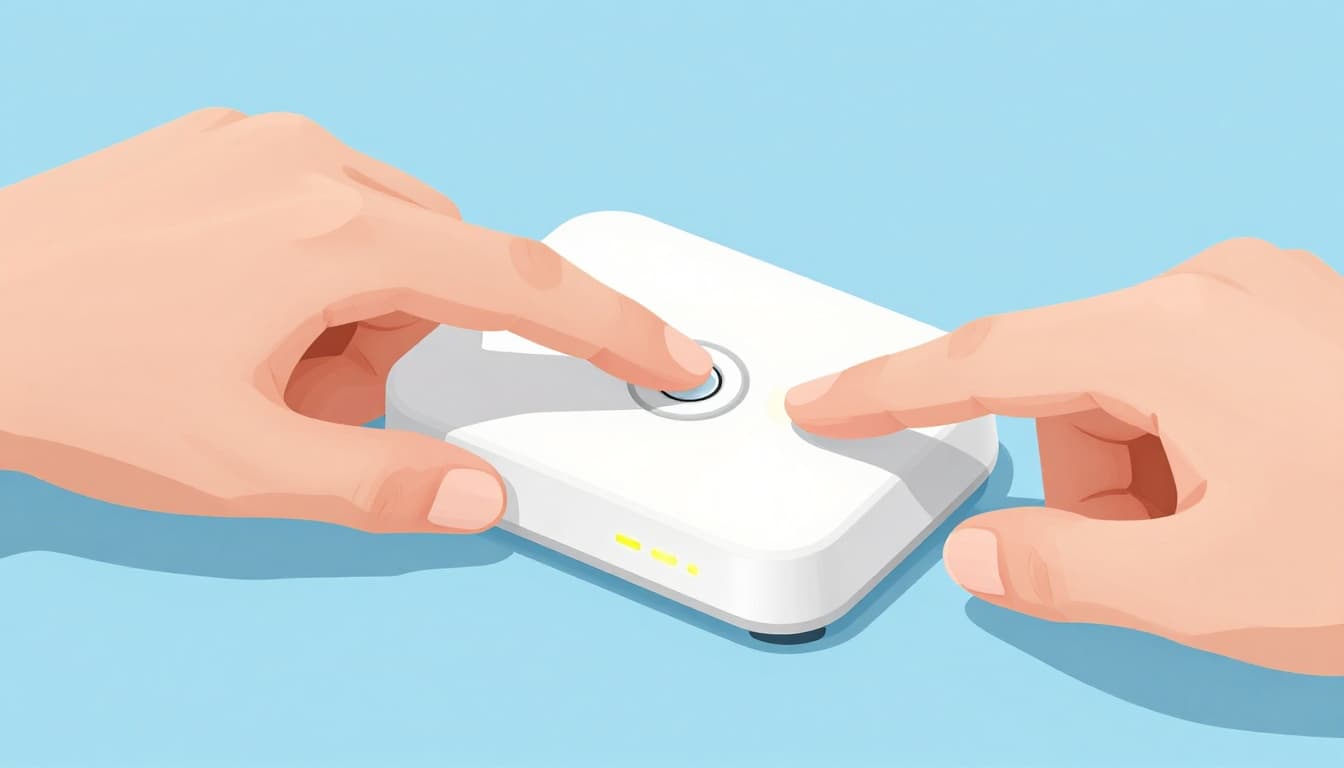
Locate the reset hole. Back or bottom, tiny pinhole.
Power on router. Insert paperclip. Hold 10 to 30 seconds till lights flash or beep.
Release. Wait 5 minutes for reboot. Defaults return: check label for SSID/password.
Or use admin page. Find “Factory Reset” under Advanced. Click and confirm.
Lights signal success. No heat or smoke means safe.
BroadbandNow outlines factory reset basics.
Tailored Steps for Top Router Brands Like TP-Link and Netgear
Models vary slightly. Always check your label or manual.
Here’s a quick guide:
| Brand | Reset Method | Default Login | Notes |
|---|---|---|---|
| TP-Link | Hold button 10 sec | tplinkwifi.net, admin/admin | Download config first |
| Netgear | Hold 10-15 sec or routerlogin.net | routerlogin.net, admin/password | Armor needs reactivation |
| Asus | Hold 10 sec, router.asus.com | router.asus.com, admin/admin | Firmware auto-checks |
| Google Nest | App or hold 10 sec | App setup | Google Home app required |
| Eero | App or hold 15 sec | eero app | LED flashes yellow |
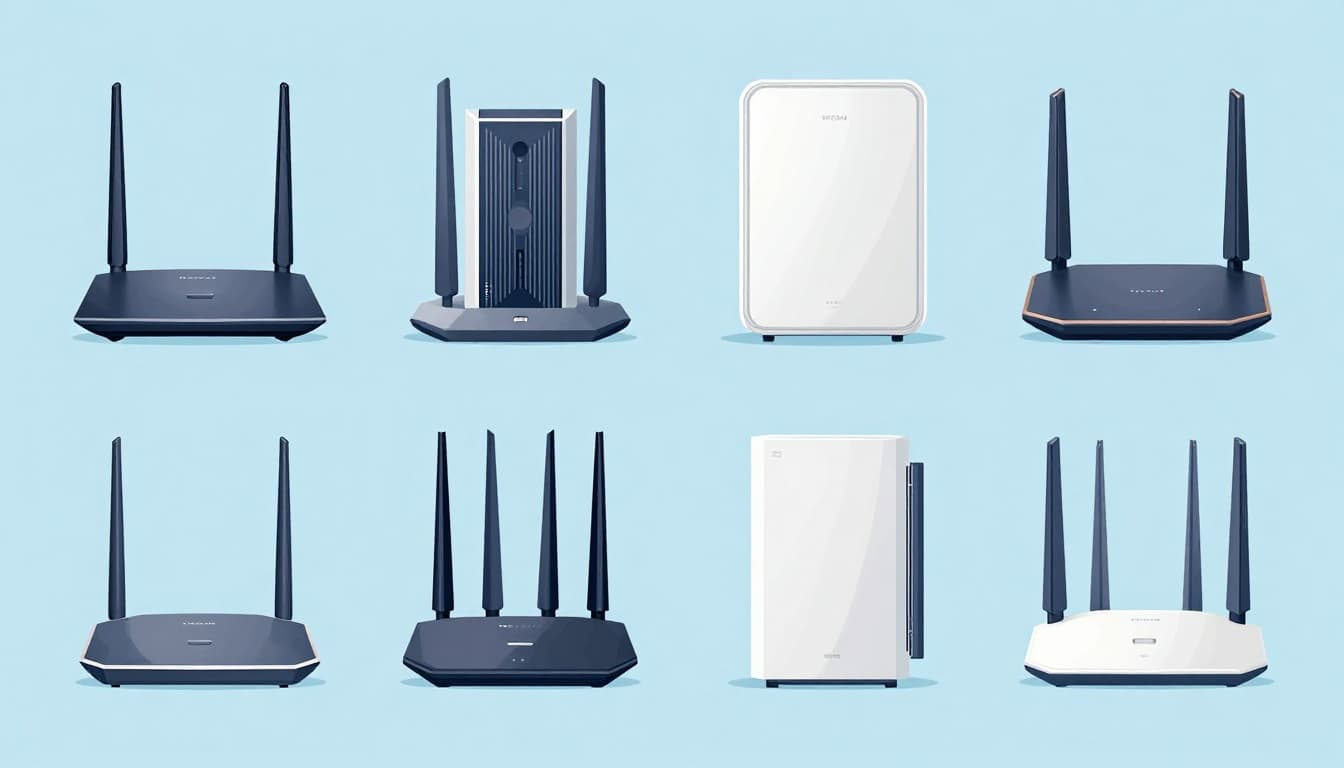
NETGEAR details at their support page. Match your model exactly.
Set Up Your Fresh Router and Lock It Down
Connect via Ethernet or default Wi-Fi. Label has details.
Log in with defaults. Change admin password now. Make it long, unique mix of letters, numbers, symbols.
Set new SSID and password. Pick WPA3 if available; WPA2 fallback. Hide SSID optional.
Update firmware auto. Restore your backup file under Administration.
Reopen ports. Add guest network for visitors. Disable WPS; it’s hack bait.
Test all devices. Run speed tests. Secure guest nets separate IoT gear.
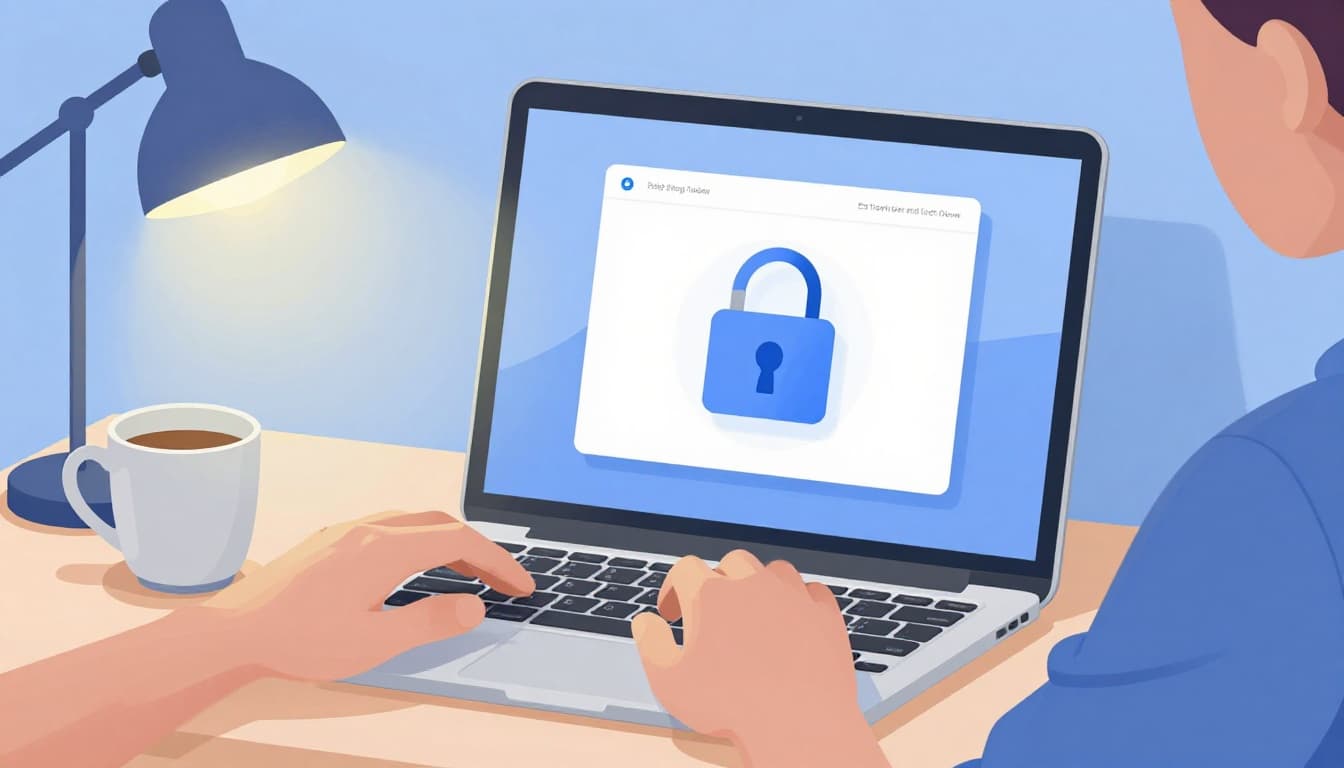
Strong setup blocks 2026 threats. IoT growth demands it; weak defaults invite DDoS via plugs.
Steer Clear of These Reset Pitfalls That Brick Your Router
Reset during firmware updates. Process corrupts; wait till done.
Forget ISP login. No internet post-reset; note modem credentials.
Leave default passwords. Hackers guess “admin” easy.
Skip WPA3 or guest nets. Devices clash; visitors snoop.
Use finger on recessed button. It slips; grab paperclip.
Reset unplugged. No power means no trigger.
Over-reset weekly. Wears hardware; do as needed.
These brick routers or expose nets. Check labels always. Reset sparingly for best life.
Ready for Rock-Solid Wi-Fi
Signs like drops and slows signal reset time. Backups prevent pain. Soft fixes quick glitches; factory tackles deep ones. Top brands follow simple holds or apps. Secure setups and pitfall dodges keep you safe.
In 2026, overload and rules make safe router resets essential. Anyone handles it with these steps.
Try yours today. Share your brand in comments. Did it fix your stream? Subscribe for more tips. Stable nets await.