Picture this: you’re deep into a heated game or scrolling Instagram, and bam, the app crashes. It happens to everyone, leaving you staring at a blank screen mid-action. Frustrating, right?
These glitches plague both Android and iPhone users in 2026, often from low storage, outdated software, or AI features hogging RAM. The good news? You don’t need tech skills to fix apps crashing on your phone.
This guide walks you through the top causes, simple step-by-step fixes for your device, and prevention tips to keep things smooth. Grab your phone and let’s tackle the first fix now.
Common Reasons Apps Crash on Your Phone
Apps crash for a few predictable reasons. Low storage tops the list, followed by outdated software and RAM overload. These issues cause over half of all crashes on Android and iOS phones in 2026, according to developer reports. For instance, memory problems like leaks from AI features eat up resources fast. Meanwhile, recent OS updates introduce bugs that older apps can’t handle.
Picture editing an album of photos. Your phone freezes because storage fills up during saves. Or switch to a game with heavy graphics; it quits because too many background apps hog RAM. Network drops crash streaming apps without warning. Battery savers kill services mid-use, and malware hides in shady downloads.
Here are the most common culprits, explained with real-life examples:
- Low storage space: Apps need room for temporary files and caches. When your phone hits 90% full, editing videos or downloading fails. Result? Sudden shutdowns.
- RAM shortages or leaks: Heavy tasks like AI photo enhancements overload memory. Background tabs pile up, forcing out-of-memory errors. This hits Android harder due to slow leaks.
- Outdated apps or OS: Apps built for older versions clash with 2026 updates. Android kernel tweaks break compatibility; iOS post-update bugs freeze screens.
- Too many background apps: They compete for CPU and RAM. Your social feed refreshes fine until email and music join in.
- Corrupted cache or bugs: Leftover data from updates corrupts files. Recent Android WebView issues exemplify this.
- Malware or permissions: Rogue apps deny access or hog power, crashing legit ones.
Spot your issue by matching symptoms. Then simple checks confirm it. Trends show AI features boost RAM crashes by 20% this year. Knowing these helps you diagnose fast, so fixes stick.
Signs It’s a Storage or RAM Problem
Crashes hit hardest during big tasks. Think loading a dozen tabs in your browser or running AI filters on photos. The app quits with no error, or your phone lags before blacking out. These point to storage or RAM strain.
Low storage shows as “not enough space” pop-ups, but crashes sneak in silently during saves. RAM issues feel like stuttering; apps reload constantly because memory overflows.
Quick checks reveal the truth. On Android, swipe to recent apps and note RAM bars turning red. Head to Settings > Storage for free space (aim for 20% empty). iPhone users tap Settings > General > iPhone Storage. Watch live RAM via third-party apps if needed.
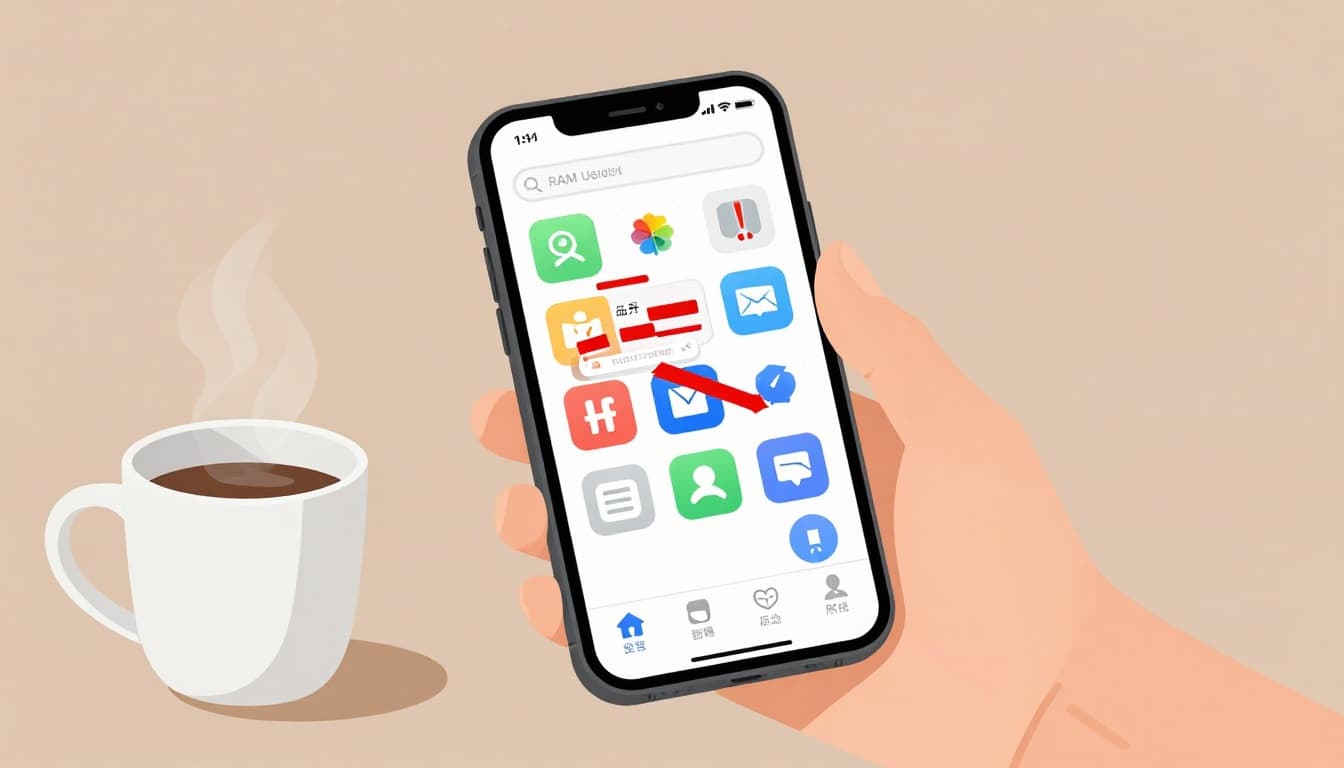
Familiar signs? Free up space first. Delete old downloads or offload apps. This resolves most overload crashes because apps run smoother with breathing room.
How Outdated Software Leads to Crashes
Old apps ignore new OS rules, sparking instant quits. Android’s System WebView crashes exemplify this; it powers web content in apps. Updates to Android kernels in 2026 altered memory handling, breaking unpatched versions.
iOS fares similar. Post-update bugs in iOS 26 clash with app caches or block features like contacts. Apps freeze on launch or during logins. Check top iOS crash causes for details; SDK mismatches top them.
Spot it by version checks. Go to app stores; red badges scream “update me.” OS lags show in Settings. Because developers patch for stability, fresh software dodges these pitfalls. Outdated ones crash under new loads, so match dates to your troubles.
Quick Fixes That Work on Any Phone
You know the drill: an app crashes, and you want it fixed now. Start here with these simple moves that work on any Android or iPhone. They clear glitches fast, often in under a minute. Best part? No data loss if you back up first via cloud or computer. These basics resolve 70% of crashes because they refresh memory and stop conflicts right away.
Restart Your Phone the Right Way
A quick restart wipes temporary bugs without touching your files. Phones get bogged down from background tasks, so this resets everything clean. Do it first; it saves hours chasing other fixes.
Follow these steps for your device:
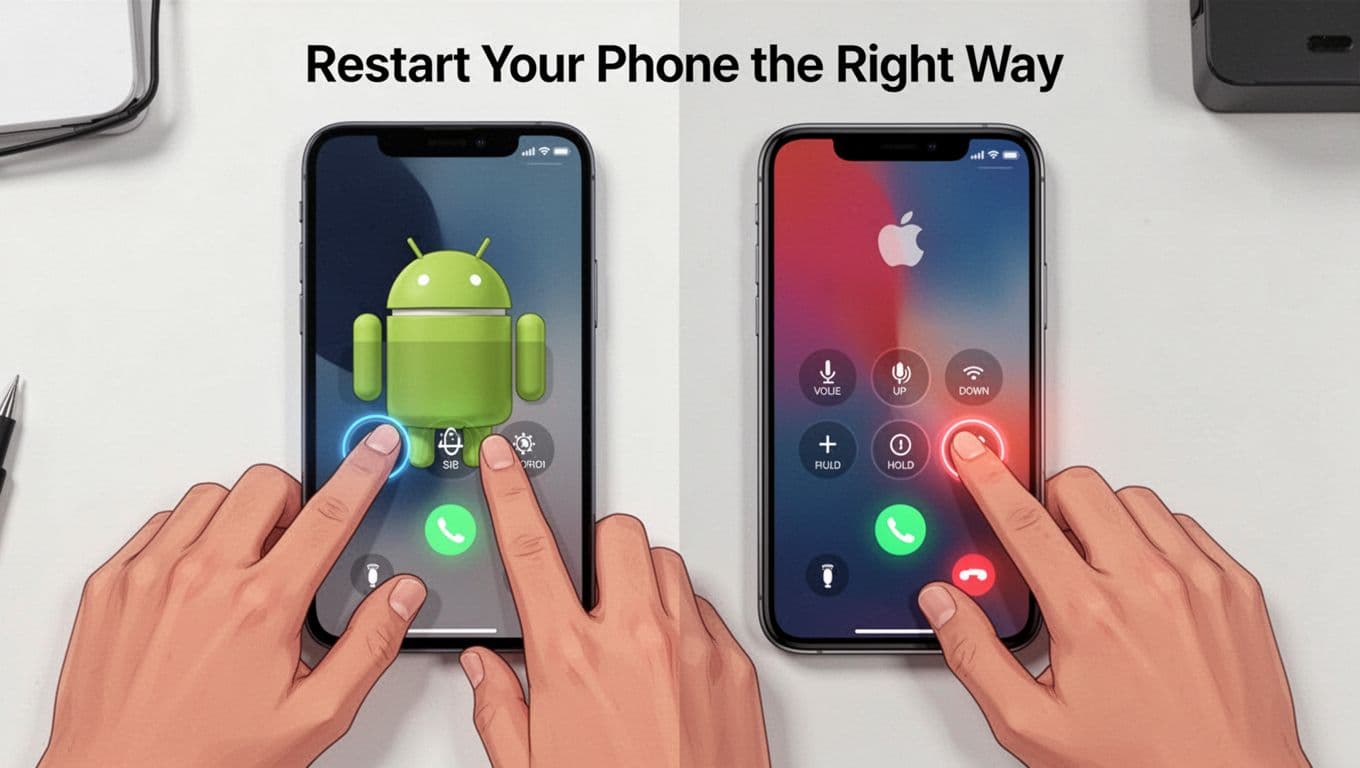
- Android phones (Samsung, Pixel, etc.): Press and hold Volume Down + Side (Power) button for 10-30 seconds. Ignore any menu; keep holding until the screen blacks out and reboots.
- iPhone 8 and newer: Quickly press and release Volume Up, then Volume Down, then hold the Side button until the Apple logo appears (about 10 seconds).
- For older iPhones: iPhone 7 uses Volume Down + Side. iPhone 6s or earlier: Home + Top/Side.
If buttons fail, swipe down for the power menu and tap Restart. Plugged in? Charge a bit first. This combo works in 2026 because manufacturers stick to these standards.
Test the app after. Still crashing? Move on.
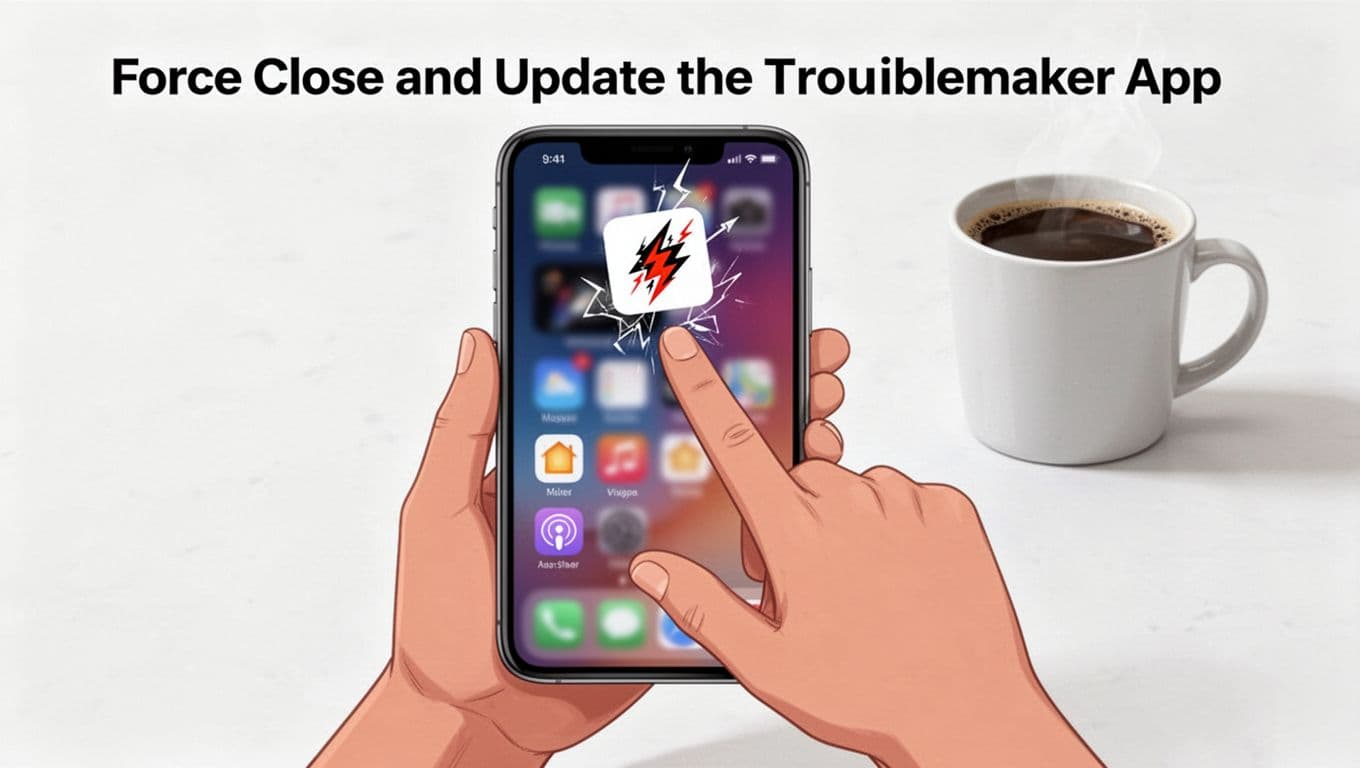
Force Close and Update the Troublemaker App
One bad app can drag everything down. Force close it to kill the glitch, then update for patches. Updates fix compatibility issues from new OS versions, so check both app and phone software.
Here’s how:
- Open recent apps: On Android, tap the square or swipe up from bottom (varies by model). On iPhone without Home button, swipe up from bottom and pause; with Home, double-click it.
- Find the crashing app. Swipe it up or away to close. For stubborn ones on Android, go Settings > Apps > [App] > Force Stop.
- Reopen the app. If it works, great. Next, update: Open Google Play or App Store, search the app, and hit Update. Also check Settings > System > Updates for OS.
Free up 5-8GB storage too; full drives cause crashes. Delete junk files or offload apps. See detailed steps to close Android apps or iPhone force quit guide for visuals.
Most apps stabilize after this. If not, storage or deeper issues lurk next.
Android-Specific Steps to Stop App Crashes
Android gives you powerful tools that iOS lacks. You can tweak individual apps directly, boot into safe mode, and reset permissions without a full wipe. These steps fix stubborn crashes, especially SIGSEGV errors from 2026 memory changes in OS updates or Google Play Services. For example, heap corruption in Conscrypt hits networking apps hard. Start simple; most users see results fast. Unlike iPhone’s all-or-nothing approach, Android lets you target the problem app.
Clear Cache and Data Without Losing Everything
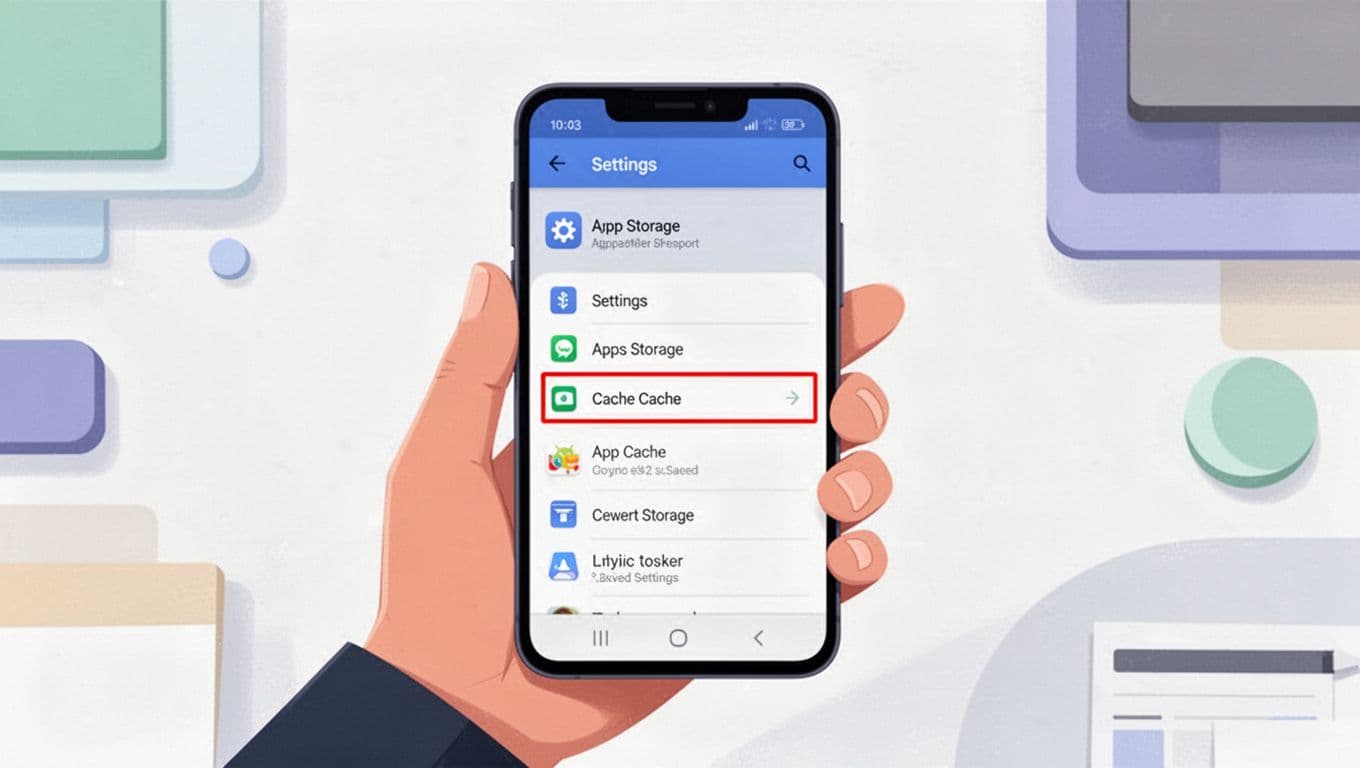
Caches build up fast and corrupt during heavy use. They cause silent crashes without deleting your photos or accounts. Clear them first; it frees space and resets glitches.
Back up key data before you start. Use Google Drive or the app’s own export feature. Then follow these steps:
- Open Settings and tap Apps (or Apps & notifications on some phones).
- Select See all apps and pick the crashing one.
- Tap Storage & cache. Hit Clear cache for temp files only. No data loss here.
- For deeper fixes, tap Clear storage or Clear data. This logs you out, so note logins first.
Samsung users go via Device care > Storage. Pixels use the same path. Check this step-by-step cache guide for visuals.
Test the app now. Crashes gone? Great. Still issues? Play Services cache often hides SIGSEGV culprits; repeat for it.
Boot into Safe Mode to Find the Culprit
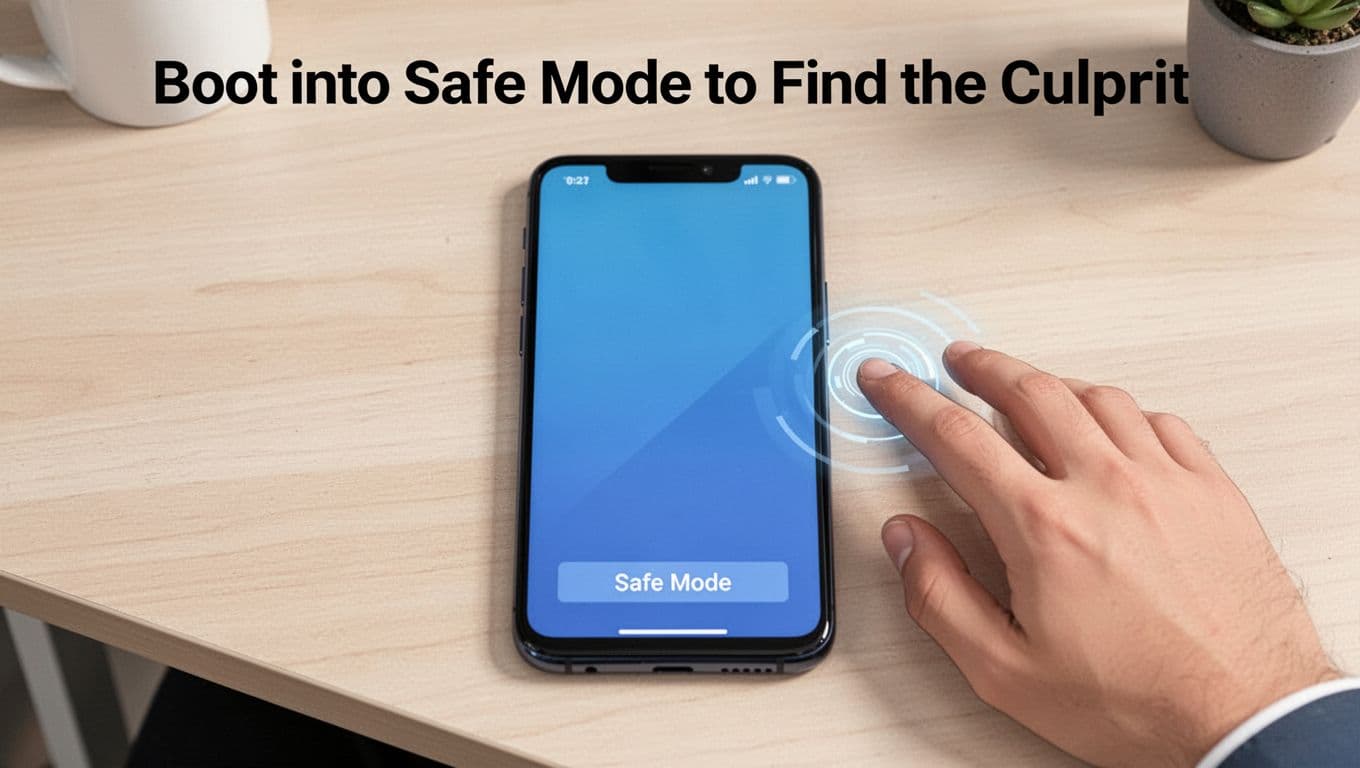
Safe mode runs only stock apps. It reveals if third-party ones cause trouble, like RAM-hogging games or buggy AI tools. Problems vanish here? Uninstall suspects.
First, power off. Then:
- Press and hold the power button until the restart option appears.
- Long-press Restart (or Power off on Pixels/Samsung). Tap OK for safe mode.
- Phone reboots with Safe mode at the bottom. Test your app.
Pixels (6+): Hold Power + Volume Up, then long-press Restart. Older models vary slightly; see Google’s Pixel safe mode steps.
Exit by restarting normally. Because safe mode isolates issues, it pinpoints bad apps quick.
Reinstall or Reset App Permissions
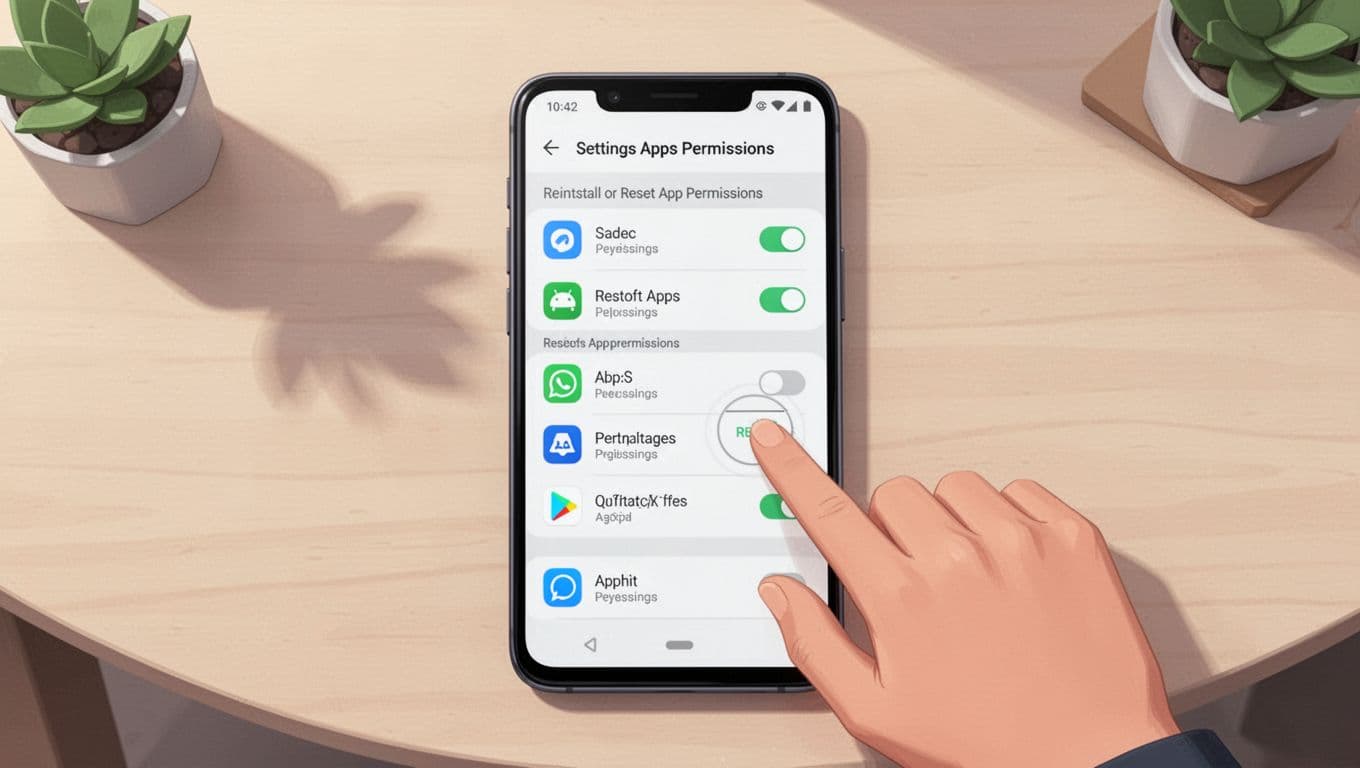
Permissions glitch after updates, blocking access and crashing apps. Reset them all at once, or reinstall for a clean slate. No factory reset needed.
For preferences: Settings > Apps > tap the three dots > Reset app preferences. This restores defaults without data loss.
Target one app? Go Settings > Apps > [App] > Permissions and toggle off/on. Then Force stop and relaunch.
Reinstall: Long-press app icon > Uninstall, then redownload from Play Store. Update Play Services too; it fixes Conscrypt crashes.
Malware lurks too. Run a Norton scan for hidden threats. These moves dodge 2026 trends like ABI mismatches.
iPhone Fixes to Get Apps Running Smoothly Again
iPhones handle crashes differently from Android. You get fewer direct tweaks, like no per-app cache clears or safe mode. Instead, focus on storage relief and system resets. These steps fix most iOS 26 bugs, such as post-update glitches or low space. In contrast, Android lets you target one app deeply. Here, offload unused ones first. Then reset settings if needed. Always back up to iCloud beforehand. This keeps data safe while freeing resources.
Offload Apps to Free Space Safely
Full storage triggers crashes during saves or updates. Offloading removes the app but saves your data and settings. Reinstall later with one tap. It’s smarter than full deletes, especially for big games or photo editors.
First, back up to iCloud. Go to Settings > [your name] > iCloud > iCloud Backup > Back Up Now. Then follow these steps:
- Open Settings > General > iPhone Storage.
- Scroll to the crashing app. Tap it.
- Hit Offload App. Confirm. The icon stays, but space frees up.
- Reopen to reinstall. It pulls data back automatically.
iOS auto-offloads when low on space, yet manual picks work best. For example, offload social apps you rarely use. This resolved crashes for many after iOS 26 updates, per Apple’s app troubleshooting guide. Still crashing? Delete and reinstall instead: Tap Delete App in the same menu, then grab from App Store.
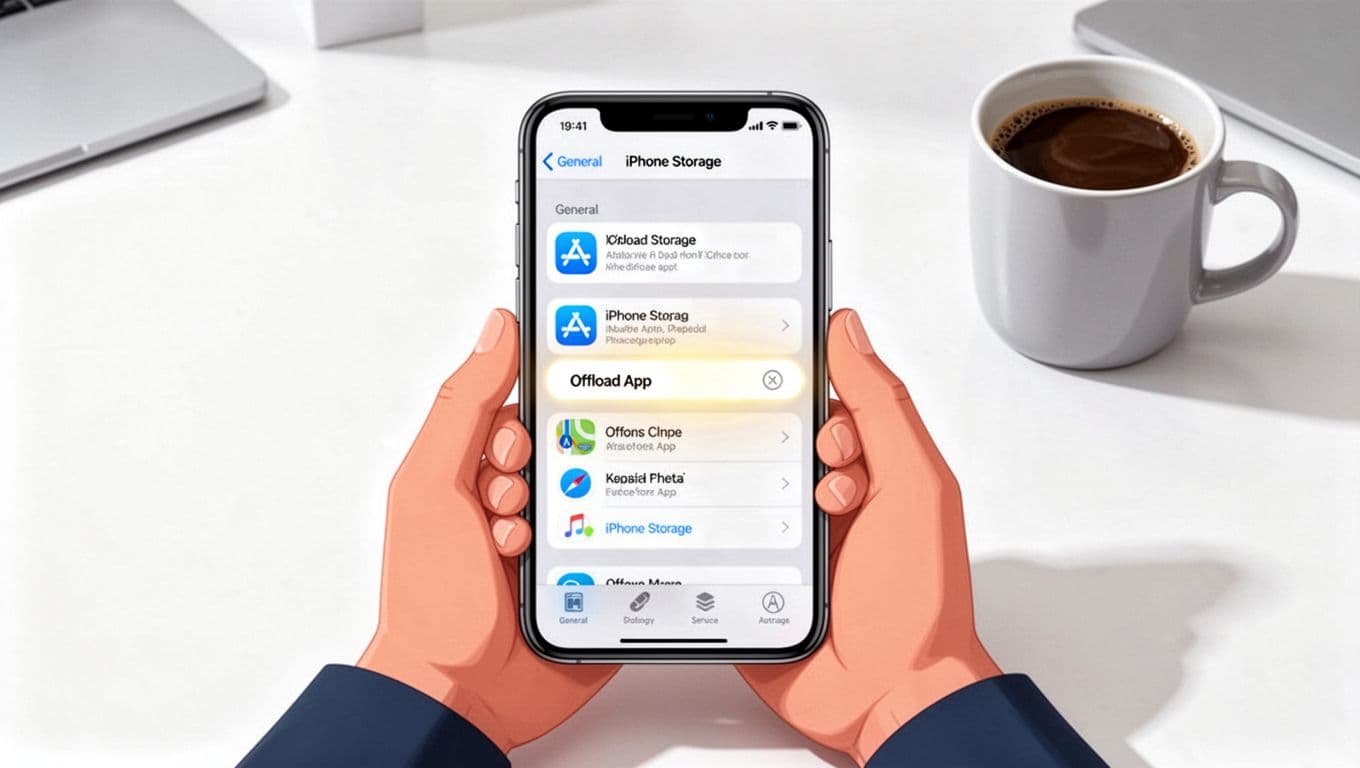 General > iPhone Storage screen with one app selected and the Offload App button highlighted with a subtle glow, on a clean desk with a coffee mug nearby.” />
Aim for 10-20GB free. Check storage often because iOS 26 needs room for AI features.
Reset Settings as a Last Non-Destructive Step
Custom settings clash after updates, freezing apps. Reset all without losing photos, apps, or accounts. It clears Wi-Fi passwords, wallpapers, and layouts only. Unlike Android’s app-specific resets, this refreshes everything at once.
Update iOS first: Settings > General > Software Update. Install if ready. Then:
- Go to Settings > General > Transfer or Reset iPhone.
- Tap Reset.
- Select Reset All Settings. Enter passcode.
Your phone restarts fresh. Reconnect Wi-Fi and tweak preferences. This fixes network bugs or permission glitches from iOS 26. See detailed reset steps for visuals.
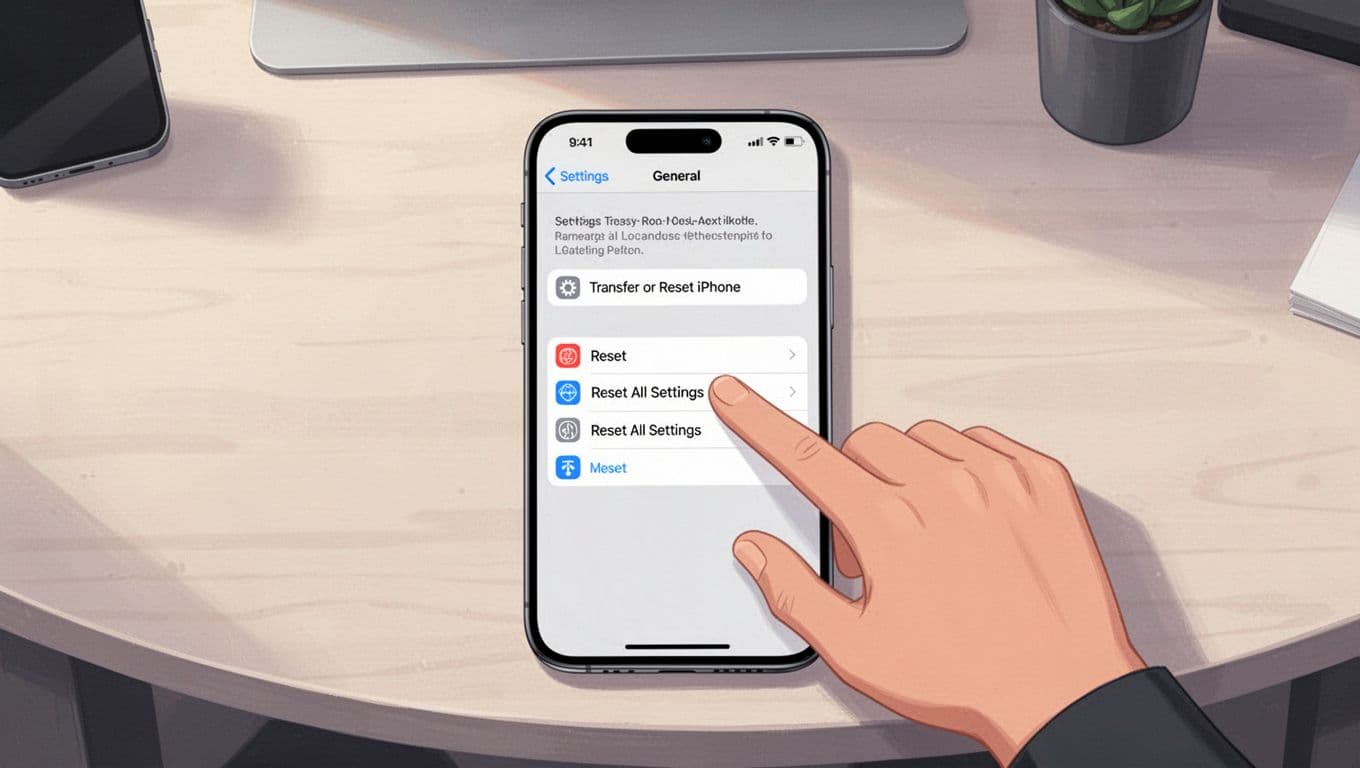 General > Transfer or Reset iPhone > Reset > Reset All Settings, with a relaxed hand tapping the option on a workspace desk.” />
Test apps after. Most run smooth now. If not, device hardware or rare bugs linger. Contact Apple Support next.
Prevent App Crashes from Coming Back
You fixed the crash, but it might return without changes. Build habits now to keep apps stable. In 2026, AI features demand more RAM and storage, so prevention saves time. Focus on these steps, and crashes drop fast.

Developers track issues with tools like Crashlytics, yet you control daily choices. Start with basics that work on Android and iPhone.
Follow these prevention tips weekly:
- Keep 5-8GB free space. Delete old photos or offload apps. Full storage triggers crashes during saves. Check Android via Settings > Storage; iPhone uses Settings > General > iPhone Storage.
- Enable auto-updates. New patches fix bugs from OS changes. On Android, open Play Store > Profile > Manage apps & device > Auto-update apps. iPhone: App Store > Profile > App Updates.
- Close background apps. They hog RAM, especially AI tools. Swipe recent apps daily and clear them. This frees resources quick.
- Avoid sideloading apps. Stick to official stores to dodge malware. Shady downloads corrupt files and cause quits.
- Back up regularly. Use Google Drive or iCloud weekly. So if resets happen, you recover fast.
- Monitor AI-heavy apps. Limit their background run. In 2026, they leak memory; force stop extras via settings.
Do these, and most crashes stay gone. Restart your phone daily too; it clears hidden glitches. For trends, see top reasons apps crash in 2026.
Still crashing after tries? Factory reset as last step: Back up first, then Android Settings > System > Reset options > Erase all data. iPhone: Settings > General > Transfer or Reset iPhone > Erase All Content. Contact manufacturer support if hardware faults like bad battery linger.
Conclusion
You now hold the tools to fix apps crashing on your phone. A simple restart clears glitches fast. Updates and freeing space handle the rest in most cases.
Try a restart right now. It brings instant relief because it wipes temporary bugs. Still crashing? Check for hardware issues and reach out to support.
Share in the comments which fix worked for you. Subscribe for more tips on smooth phone use. Enjoy crash-free scrolling and gaming from here on out.