Your phone screen freezes right as a call comes in. Or your laptop touch ignores your swipes during a busy workday. These moments frustrate anyone with a smartphone, tablet, or 2-in-1 device. In 2026, this hits Android, iOS, and Windows users hard because daily use builds up grime, updates glitch, and accidents happen.
Dirt blocks sensors. Software bugs crash inputs. Damage hides under intact glass. You face these issues often, but most fix quick without a shop visit. This guide walks you through steps that revive screens on most devices. Start simple and work up, so you regain control fast.
Spot the Sneaky Reasons Your Touchscreen Went Silent
Touchscreens fail for reasons you can spot yourself. First, physical buildup tops the list. Finger oils, dust, or moisture coat the surface and fool sensors into ignoring taps. Even a light sweat during workouts causes this on phones or tablets.
Next, software glitches strike after updates. Low memory lets apps overload the system, so touches lag or vanish. In 2026, iOS 26 rollouts sparked complaints of frozen inputs right after install. Android users see similar post-update hangs, especially on Samsung Galaxy S26 models.
Cases and protectors trap dirt too. Air gaps or thick edges block signals, creating dead zones. Overheating from charging or heavy apps adds pressure, as devices cut touch to cool down.
Hardware damage lurks last. Drops crack digitizers beneath the glass, even if it looks fine. Swollen batteries push against screens. Gloves, pens, or metal objects interfere because sensors expect skin contact.
Self-check now. Wipe the screen dry. Remove covers. Does touch improve? If not, software likely plays a role. For more on common triggers across devices, check this quick guide to touchscreen issues. Pinpoint the cause before fixes, and you save time.
Jumpstart Your Screen with These No-Brainer First Fixes
Most unresponsive screens wake with basic steps. Try these in order because they tackle 80% of cases from recent data. Test touch after each one.
- Clean the display gently.
- Strip off cases or films.
- Force a restart.
These refresh hardware contacts and clear minor software hitches. No tools needed, and they work on Android phones, iPhones, iPads, or Windows laptops alike.
Clean Your Screen the Right Way
Oils kill touch accuracy fast. Grab a microfiber cloth, the kind for glasses. Wipe in straight lines, not circles, to avoid streaks. Focus on edges where grime hides.
Skip paper towels; they scratch. Never use liquids or sprays because moisture shorts sensors temporarily. If wet, dry fully first, then wipe. Pat dry with the cloth if needed.
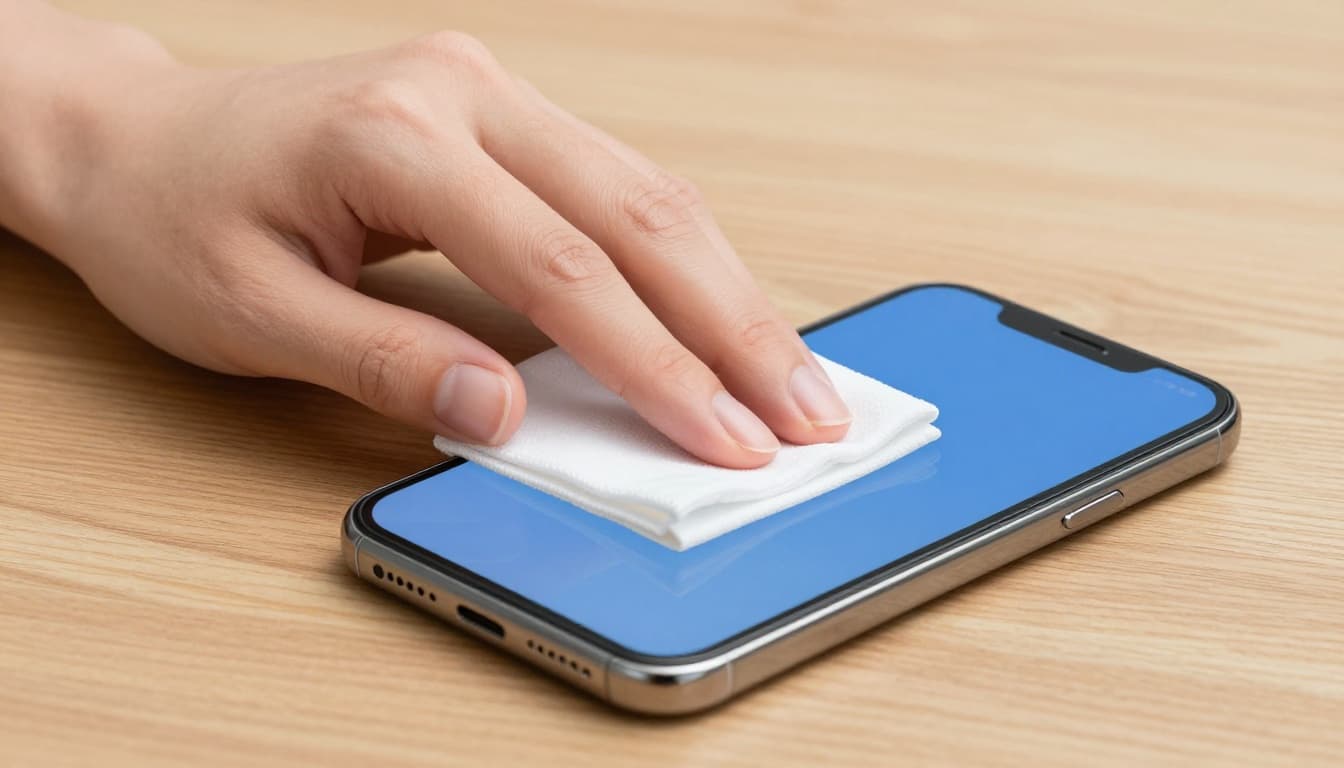
This method revives sensors without risk. Many users report instant fixes after proper cleans.
Remove Accessories That Might Be Blocking Touch
Cases bulge signals. Protectors lift at corners, trapping dust. Pull them off completely. Run fingers across the bare screen.
Test swipes and taps. If response sharpens, replace with thinner options. Old films lose stick, so gaps form dead spots. Bare tests confirm if accessories cause the block.
Force a Restart to Clear Glitches
Reboots flush temporary bugs. On Android, hold power and volume down 10-30 seconds until logo shows. Samsung models need side button plus volume down.
For iPhone or iPad, quick-press volume up, then down, hold side until Apple logo. Windows laptops? Hold power 10 seconds or use Start menu restart.
This resets processes without data loss. Post-iOS 26, restarts fixed most freezes per reports.
Dig Deeper with Software Tweaks for Tough Cases
Basics fail? Software hides deeper. Updates in 2026 patched many bugs, but first you isolate apps or settings.
Boot safe or recovery modes next. Update systems. Tweak sensitivity. These steps build on restarts and often end the problem.
Test in Safe Mode to Hunt Bad Apps
Android shines here. Hold power button, long-press “Power off,” tap Safe Mode. Third-party apps disable.
If touch works, recent downloads conflict. Uninstall suspects one by one. Exit by restart.
iOS lacks true safe mode, so force restart then delete new apps. This spots culprits fast.
Grab the Latest Software Updates
Bugs flee with patches. On Android, go Settings, System, Software update. Connect to WiFi.
iOS needs a computer if frozen: use Finder or iTunes for wireless update. Windows heads to Settings, Update & Security.
2026 data shows updates fixed touch lags on Galaxy S26 devices. For Samsung-specific tips, see fixes for unresponsive Galaxy screens. Always back up first.
Adjust Settings and Reset Without Losing Data
Boost sensitivity on Android: Settings, Display, toggle it on. iOS Accessibility, Touch, adjust sliders.
Reset all settings next: Android under System, Reset options. iOS General, Transfer or Reset, Reset All Settings. No data vanishes, but WiFi passwords clear.
These refresh configs. Low memory? Close apps or wait out background tasks.
Tailored Fixes for Android Phones, iPhones, and Windows Laptops
Device quirks matter. Android favors safe mode. iPhones lean on recovery. Windows eyes drivers. Use these after basics.
| Device Type | Key Step 1 | Key Step 2 | Pro Tip |
|---|---|---|---|
| Android (Samsung/Pixel) | Safe mode boot | Edge clean | Play Store app updates |
| iPhone/iPad (iOS 26) | Force restart sequence | PC recovery | Check for moisture |
| Windows Laptop/Surface | Device Manager toggle | Full updates | Run diagnostics |
This table recaps winners. Pick your OS and act.
Android Phones and Tablets Quick Wins
Safe mode isolates apps best here. Clean edges; bezels collect oils. Update via Play Store too, as rogue apps lag inputs.
iPhone and iPad Recovery Steps
Post-iOS 26, force restarts rule. Connect to PC for DFU if stuck: hold buttons per model till recovery screen. Uninstall recent apps after. See iPhone touch fixes for model details.
Windows Laptop and Tablet Troubleshooting
Open Device Manager, expand Human Interface Devices, right-click touch screen, disable then enable. Check Windows Update for drivers. Microsoft suggests restarts first; follow with their touch support page.
Spot Hardware Trouble and Lock in Prevention Habits
Software maxed out? Hardware signals emerge. No response post-reboot means sensors failed. Cracks, heat, or battery swell confirm it.
Shops test digitizers. Warranty covers drops often. Until then, use mouse mode on laptops.
Prevent repeats daily. Clean weekly. Update promptly. Skip thick cases.
Warning Signs It’s Hardware, Not Software
- Zero touch after full resets.
- Swelling or heat buildup.
- Visible cracks or water marks.
- Works in BIOS but not OS.
These scream pro help. Back up data now.
Daily Habits to Avoid Touchscreen Drama
- Wipe dry after hands-on use.
- Charge without screen contact.
- Avoid gloves or styluses.
- Update before low battery.
- Use slim, dust-free cases.
These cut risks by half, per user reports.
Screens revive easy with patience. Start with cleans and restarts, then software dives, device tweaks. Most users fix in under 30 minutes. If stuck, pros handle hardware.
Grab your device and test a step today. What fixed yours? Share in comments below. Stick around for more tech fixes.