You boot up your computer one morning. Everything feels off. Apps crash left and right, or your phone drains battery faster than usual. A recent update did this. Problematic updates break features, slow devices, or cause errors. They happen more than you think.
Rolling back fixes most issues fast. You restore normal speed and function without losing files. This guide covers Windows, macOS, Android, iOS, Linux, and browsers. Methods match March 2026 tools and fixes. Follow these steps, and you’ll fix it yourself.
Spot the Red Flags That Scream ‘Rollback Time’
Your device acts strange after an update. Slow boot times signal trouble first. Programs take forever to open. Or crashes pop up every few minutes.

Error messages flood your screen. “No internet” warnings appear despite a strong connection. Features vanish too. Battery life drops on phones because background processes run wild.
Take Microsoft’s March 2026 update, KB5079473. It caused sign-in blocks with fake offline alerts. Boot failures hit some Windows 11 users. Crashes and freezes followed. Quick rollbacks saved the day for many.
Check update history right away. On Windows, go to Settings, then Update & Security. Note the KB number. Act fast. Delays let small glitches grow into data risks. You spot these signs early, so you fix them before frustration builds.
Protect Your Stuff: Backup Essentials Before Rolling Back
Backups come first, always. Rollbacks can wipe files if something goes wrong. You don’t want to lose photos or documents.

Use built-in tools. Windows has Backup and Restore in Settings. Macs rely on Time Machine; connect an external drive and select it in System Settings. Android users sync to Google Drive via Accounts. iOS taps iCloud in Settings. Linux favors Timeshift for snapshots.
Find these in your device settings. Run a full backup now. Test it by restoring one file. Some rollbacks, like full restores, erase everything. A good backup keeps you safe. You gain peace of mind this way.
Easy Rollback Recipes for Every Device
Each platform offers simple paths back. Pick your device and follow along. Risks exist, so backups matter. Security gaps open briefly, but fixes beat constant crashes.
Windows: Uninstall or Go Back in Minutes
Windows makes this straightforward. Start with Settings. Press Windows key + I. Click Windows Update. Tap View update history, then Uninstall updates.
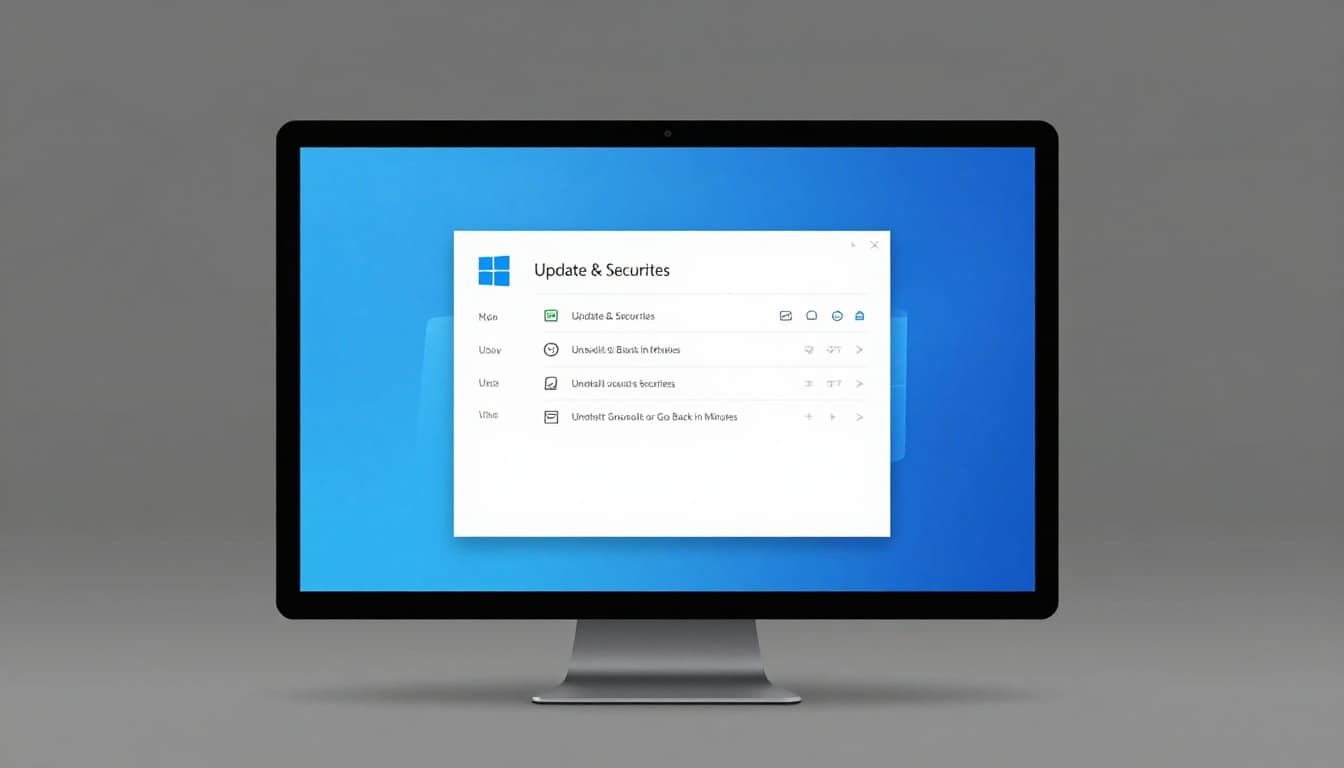
Select the bad update, like KB5079473 from March 2026. Confirm and restart. For the full “Go Back,” search Recovery in Settings. Choose Go back if within 10 days.
Boot issues? Hold Shift during restart. Go Troubleshoot, then Uninstall Updates. Command Prompt works too. Open as admin. Type wusa /uninstall /kb:5079473. Restart four times if stuck.
Pause updates after in Settings to buy time. Users fixed Outlook breaks from earlier patches this way. Check Microsoft’s official uninstall guide for details.
macOS: Restore with Time Machine or Safe Mode
macOS lacks direct OS rollbacks. Safe Mode tests first. Restart and hold Shift until login. Check if issues persist.
Software Update in System Settings shows problems. For apps, drag them to Trash from Finder.
Full restore uses Time Machine. Restart holding Command + R for Recovery. Select Restore from Time Machine. Pick your backup. It overwrites the current setup.
See Apple’s Time Machine restore steps. You keep most data intact. Test in Safe Mode before big changes.
Android and iOS: App Fixes and Backup Restores
Android handles app updates easily. Go Settings, Apps. Pick the app. Tap three dots, then Uninstall updates. It reverts to factory version.
System betas? Check Settings, System, System update. Leave beta programs. Full OS rollback needs risky ROM flashes; avoid unless expert.
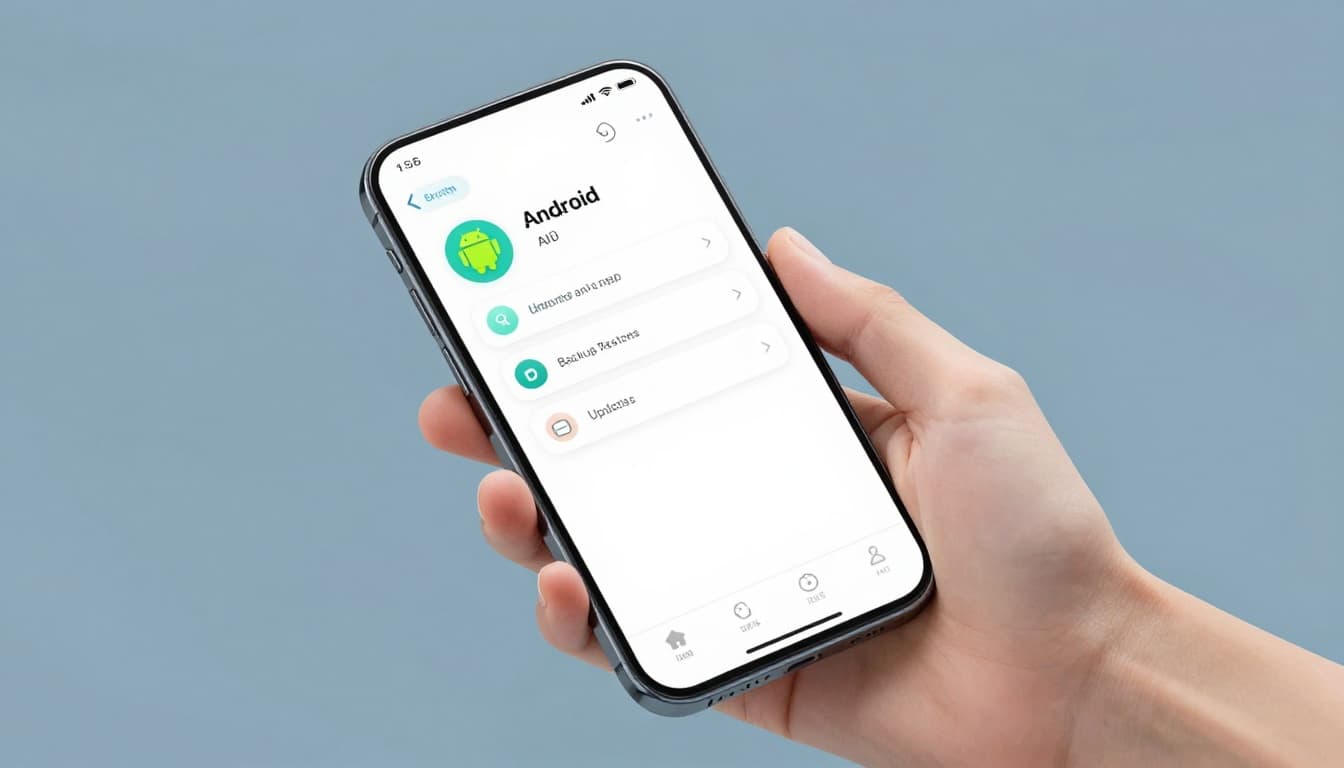
iOS betas go first. Settings, General, Software Update, Beta Updates, turn Off. Restore via Finder on Mac or iTunes. Connect device, choose Restore Backup.
Factory reset erases all; use last. Backups prevent loss. March 2026 Pixel fixes hit modems hard, but app rollbacks helped many. Follow Apple’s beta removal guide.
Linux: Downgrade Packages Like a Pro
Linux shines here. Ubuntu users run apt list --upgradable. Install old version: sudo apt install package=1.2.3-1. Hold it: sudo apt-mark hold package.
Fedora tries dnf history. Then dnf history undo 5. Timeshift snapshots roll back whole systems safely.
Check changelogs first. You target exact packages. No full wipe needed usually. See Ubuntu hold package tips.
Browsers: Downgrade Chrome, Firefox Safely
Browsers update silently. Chrome needs old installer from archives. Uninstall current via Settings. Disable updates: delete GoogleUpdate folder in Program Files (Windows) or ~/Library/Google (macOS).
Install older version. Set policies to block auto-updates. Firefox grabs from archives.mozilla.org. Type about:config, set app.update.auto to false.
Security drops fast, so use short-term. Test sites after. Developers fixed legacy tools this way.
Lock Down Updates: Prevent the Next Headache
Pause updates where possible. Windows lets you in Settings for weeks. Macs prompt before big ones.
Test betas on spare devices. Tools like Timeshift create snapshots anytime. Update apps one by one, not all at once.
Read changelogs on vendor sites. Regular backups run weekly. You stay ahead of breaks. No more surprise crashes.
Ready to Roll Back with Confidence
Spot signs like crashes or slowdowns early. Backup everything first. Use platform steps for quick fixes.
Test your device after. Set pauses and snapshots to avoid repeats. You’ve got the tools now.
Share your rollback story in comments. What update hit you? Subscribe for more device tips. You handle this stuff easy.