You grab your laptop for an important meeting. The screen stays black. No lights. No hum from the fans. Panic sets in because you need that presentation now.
This hits everyone at some point. In 2026, power supply problems top the list for laptops that won’t turn on in the US. Faulty chargers cause most issues. Battery failures follow close behind. Hardware glitches like loose RAM round out the common culprits, based on recent repair data.
The good news? You can fix 90% of these at home. Most steps take under 30 minutes. No special tools required. Follow this clear plan, and you’ll likely get back online fast. Let’s start with the simplest checks.
Start Simple: Double-Check Your Charger and Outlets
Power connections fail more than anything else. Loose plugs or dead outlets cause quick blackouts. In 2026 stats, chargers top the no-power list because cords fray or ports loosen from daily use.
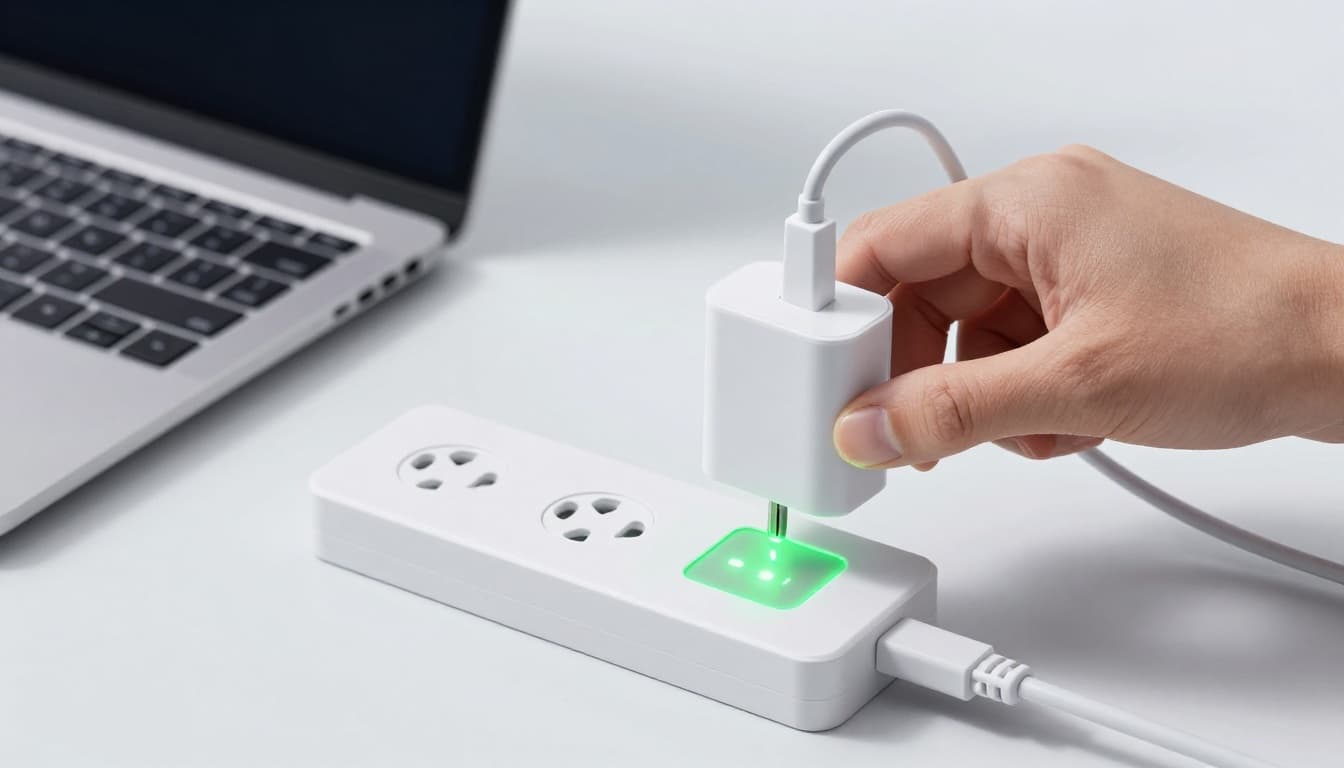
First, unplug the charger from your laptop and the wall. Inspect both ends. Push it back in firmly. Make sure it clicks or seats tight. Then, plug the other end into the wall socket. Watch for any response.
Next, check the outlet. It might be faulty. Grab your phone charger. Plug it in. If the phone charges, the outlet works fine. Try a different wall spot anyway. Sometimes circuits trip without warning.
Look at the charger brick. Many have an LED light. A steady glow means power flows. No light? The charger could be dead. Feel it gently after plugging in. It should stay cool or slightly warm. Hot to the touch signals a problem inside.
For more on common laptop charger fixes, check this guide. It matches what techs see daily.
Safety first. Skip damaged cords. Frayed wires spark fires. Replace them right away.
Spot Charger Problems by the Lights and Feel
Focus on that LED again. Green or amber usually means good. Blinking or off points to failure. Cables fray near the plug from bending. Run your fingers along it. Feel for kinks or bare wires.
Borrow a friend’s charger if possible. Match the voltage and amps on the label. Wrong specs fry internals. For example, a 19V charger won’t work on a 20V laptop. Test it. If the laptop powers up, buy a replacement fast.
This step revives many machines. Data shows DC jack breaks from drops cause half these woes. A snug fit often solves it without parts.
Reset Your Laptop with a Hard Power Cycle
Glitches trap power in the system. A hard reset clears them. Recent guides call this the fix for 90% of stubborn cases. It drains leftover electricity from capacitors.
Unplug the charger first. If your battery pops out, remove it. Older models let you slide a latch. New ones glue it in place.
Hold the power button down. Count to 30 seconds. This discharges static. Reconnect the charger. Skip the battery for now. Press power again.
No luck? Hold longer, up to 60 seconds. In a dark room, look for fan spins or faint lights. Listen close. A whir means it lives inside.
This works because motherboards hold ghost charges. They block startups. The reset wipes that clean.
For Dell-specific steps, see Dell’s power troubleshooting page. It covers no-power symptoms well.
Modern laptops pack non-removable batteries. They slim down designs. But the reset still applies.
Handle Laptops with Non-Removable Batteries
Skip battery pull. Unplug everything. Hold power for 60 seconds. Some brands add keys. On Dell, press power plus volume down. HP uses power and insert sometimes.
Plug back in. Wait 10 seconds. Try starting. This forces a deeper drain.
Meanwhile, remove peripherals. USB drives or mice confuse boots. Clear vents too. Dust blocks airflow and overheats chips.
Users report success after two tries. It reboots firmware glitches from updates.
Test If Your Screen Is Hiding a Running Laptop
Your laptop might run fine. The screen just blacks out. Fans spin. Lights blink. But nothing shows.
Take it to a dark room. Shine a flashlight on the display at an angle. Faint images mean backlight failure. Common in 2026 from LED wear.
Check power LEDs. Steady green often signals on status. No lights? True power fail.
Hook up an external monitor. Most laptops have HDMI or VGA ports. This confirms if internals work.
If the external shows desktop, the built-in display failed. Cables loosen inside. Panels crack from pressure. Repairs cost less than full swaps.
Borrow a TV or friend’s screen. It saves trips to stores.
Connect an External Display to Confirm
Power on the laptop. Plug in the cable to both devices. Press Fn plus F4. Or look for a screen icon key. Cycles outputs.
Image appears? Great. Internal issue only. Skip to display fixes later.
No signal? Power problem persists. Move to deeper checks.
HP’s guide on blank screens that start up details this test.
Dig Deeper: Battery, Button, and RAM Checks
Basics failed? Look inside. Start with battery if removable. Slide it out. Clean contacts with a dry cloth. Reinsert firmly.
Test without it. Charger alone should boot. If yes, battery died. Replacements run $50 online.
Power button sticks or fails next. Press short bursts. No click? Keyboard fault in slim 2026 models.
RAM loosens from bumps. Shuts down boots cold.
Open the bottom panel. Comfortable? Unscrew carefully. Avoid warranties.
Model guides help. Search your exact make online.
Static zaps parts. Touch metal first. Ground yourself.
Pros handle motherboards. They test chips.
Reseat RAM Sticks Safely at Home
Power off completely. Flip the laptop. Remove screws. Note lengths. Lift the panel.
Find long slots with clips. Press ends. Stick pops up at 45 degrees. Pull out.
Wipe gold contacts. Push back evenly. Clips snap.
Replace panel. Screw tight but not over. Boot up.
This fixes loose connections. Data lists it high for no-starts.
Inspect or Bypass a Faulty Power Button
Buttons integrate into keyboards now. Clean around it. Dust jams.
Advanced users boot from USB. Hold volume up plus power on some.
Unsure? Stop here.
Stop DIY When These Red Flags Appear
Pause if basics flop. No response after reset? Deeper hardware died.
Smoke or burn smells mean shorts. Overheating history? Motherboard likely fried.
Warranty active? Don’t open. Voids coverage.
Not handy with screws? Shops have tools. They probe power chips.
Costs vary. New charger: $50. Battery: $80. Motherboard: $300 plus labor.
Old laptops over five years? Replace instead. New ones start at $400.
Contact makers first. Local repairs second. Frustration fades with pros.
Most power woes solve DIY, per 2026 stats.
Most laptops revive with charger checks, resets, screen tests, or battery swaps. Clean ports yearly. Buy quality chargers. Add surge protectors.
Try these now. Your machine likely powers up soon. Share in comments what worked. Or describe your issue below. You’ve got this. Home fixes handle the bulk.