
Picture this. You’re in the middle of a big work presentation. Your laptop screen freezes solid with a blue error staring back. Panic sets in as colleagues watch. You smash keys, but nothing helps.
That gut-wrenching moment hits everyone. Tech glitches waste hours if you guess at fixes. Spotting the real cause ends the chaos fast. This guide gives you a simple step-by-step plan. It works on PCs, Macs, or any device in March 2026. We’ll cover documenting details, basic checks, updates and scans, targeted tests, plus isolating software from hardware. AI tips make it even easier. Let’s start fixing like a pro.
Take a Deep Breath and Write Down Every Detail
Rushing into fixes often hides key clues. You might tweak the wrong setting. Stay calm first. Grab a notepad or phone app. Note the exact time the problem began. What task ran right before? Copy any error messages word for word. Does it happen every time, or just sometimes? Which apps or devices act up?
Details like these build a clear picture. One app crashes often? That screams software trouble. The whole system slows or makes beeps? Hardware could be the issue. Use your phone’s notes app for speed. Or try a free tool like Google Keep.
In 2026, snap screenshots of errors. Share them with AI chatbots like Copilot or Gemini. They spot patterns instantly. For example, upload a blue screen shot. The AI suggests common fixes based on the code.

Spot Patterns That Point to Software or Hardware
Look for repeats in your notes. Crashes only in Photoshop? Software conflict likely. Freezes across all apps with fan roars? Overheating hardware. Ask yourself these questions. Does it start after a recent update? Only with big files open? Heat up fast during light use?
One pattern: errors after installing new apps point to conflicts. Total blackouts or odd smells suggest power or hardware fails. These clues narrow options quick. No tools needed yet. Just your list. This step saves time later. Beginners nail it every time.
Restart Everything and Inspect Connections First
Most glitches clear with a full restart. Power off your device. Wait 30 seconds. This flushes temp files and resets processes. Restarts fix 80 percent of issues. Unplug all extras too. Mouse, keyboard, external drives, printers. Test the device alone.
Plug back one item at a time. See which triggers the problem. Swap cables or ports. Try a different outlet. Loose connections mimic big fails.
On Windows, enter safe mode for deeper checks. Hold Shift during restart from login screen. Macs need a power button hold at startup. Check Microsoft’s safe mode guide for exact steps. Problems gone in safe mode? Third-party software causes it.
What Safe Mode Reveals About Your Setup
Safe mode loads bare-bones software. No fancy extensions or startup apps. Windows boots minimal drivers. Macs skip caches and fonts. If your glitch vanishes, blame add-ons.
Uninstall recent programs next. Go to Settings, Apps. Recheck after. Don’t skip this. It IDs bad software fast. For Macs, see Apple’s safe mode steps. Safe mode proves software guilt without hours of digging.
Update Your System and Run Quick Scans
Outdated software causes crashes. Especially after March 2026’s Windows KB5079473 update bugs. Open Settings on Windows. Search Updates. Install all. Macs go to System Settings, General, Software Update.
Run scans too. Windows Defender does full checks. Search it in Start menu. Macs use Disk Utility First Aid. Outdated bits or malware fake hardware issues. Install just one antivirus. More fight each other.
2026 tip: AI tools auto-patch. Paste errors into ChatGPT. It lists fixes with links.
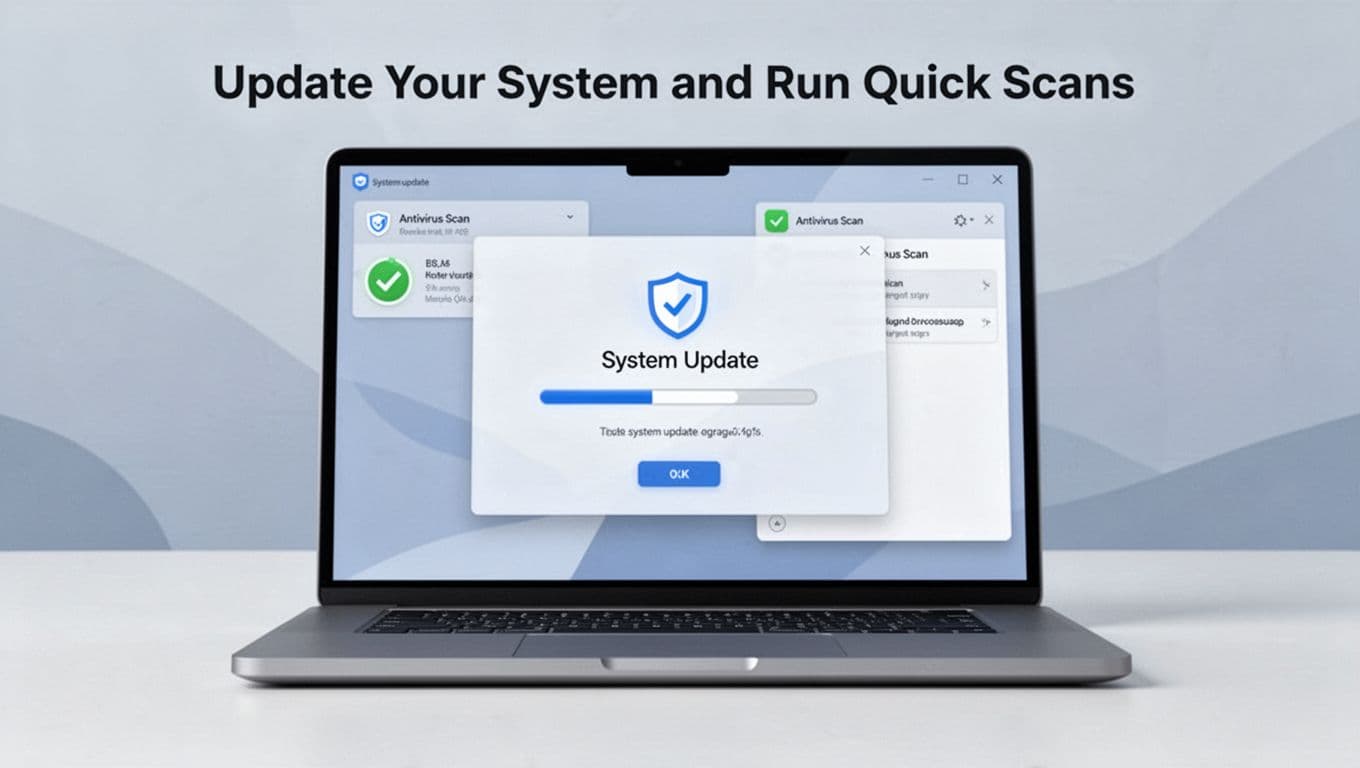
Free Tools That Make Scanning Effortless
Stick to built-ins first. They catch most threats. Then AI chatbots. Upload screenshots. Get tailored advice. No downloads needed. Avoid extra apps unless scans miss something. This keeps your system clean and fast.
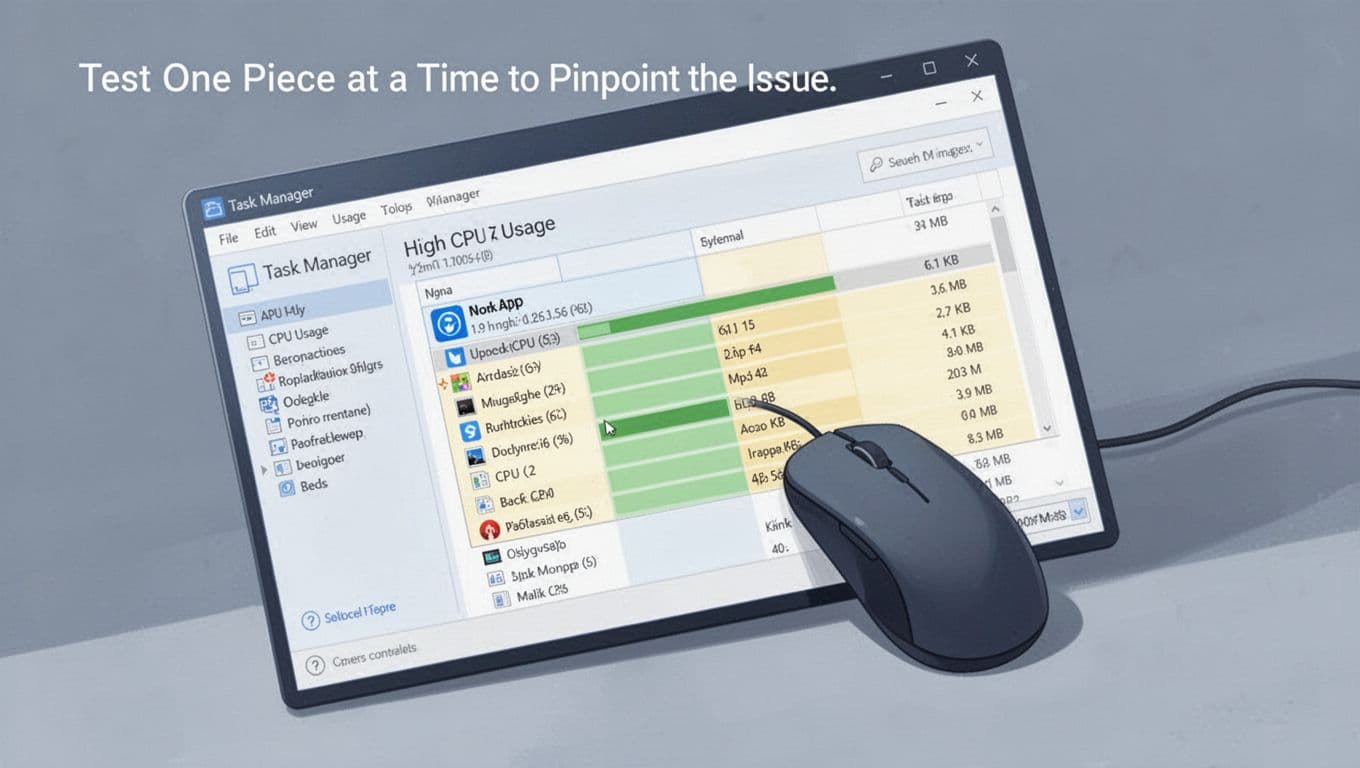
Test One Piece at a Time to Pinpoint the Issue
Change one thing only. Test software first. Open apps solo. Watch for spikes. On Windows, Ctrl+Shift+Esc opens Task Manager. Sort by CPU or RAM. High use by one app? End task it. Uninstall suspects.
Check storage. Full drives slow everything. Free space above 20 percent. Run memory tests next. Type mdsched.exe in Windows search. Restart for diag. Macs hold D at boot.
Benchmark hardware. Sites like UserBenchmark compare speeds. Slow scores flag issues.
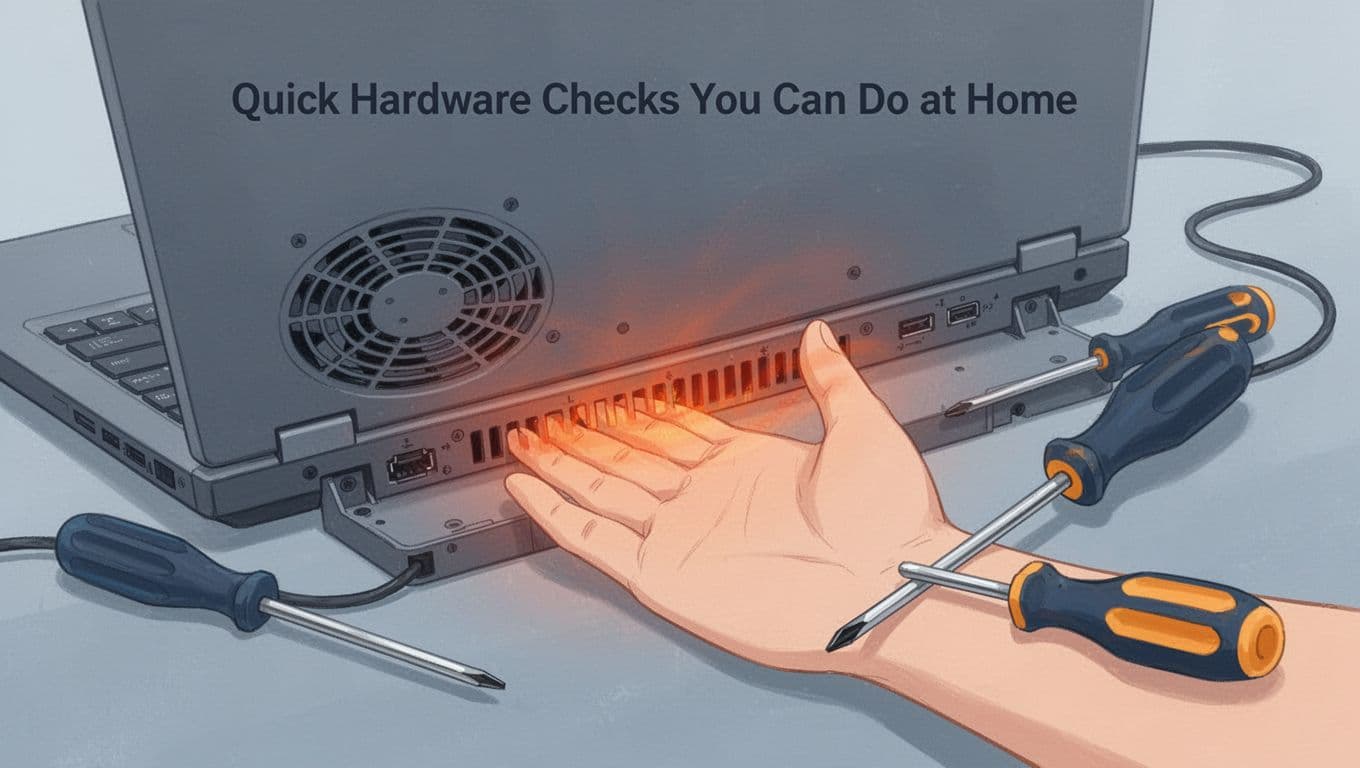
Quick Hardware Checks You Can Do at Home
Listen close. Grinding fans or clicks mean trouble. Feel vents. Hot bottoms signal dust blocks. Use free HWiNFO for temps. See this HowToGeek review. Test peripherals on another device.
Clean dust with compressed air. These checks spot 90 percent of home fixes.
Isolate Software Conflicts from Hardware Faults
Doubts left? Check logs. Windows Event Viewer shows errors. Search eventvwr.msc. Filter Windows Logs, System. Red icons flag issues. Paste into AI for reads. See this 2026 Event Viewer guide. Macs use Console app.
Age matters. Parts over 4 years wear out. Software fails show in safe mode. Hardware sticks around.
Boot Ubuntu live USB to test. Download ISO. Use Rufus for stick. Boot from it. Smooth run? Your drive or OS guilty. See SupportHost’s Ubuntu USB steps.
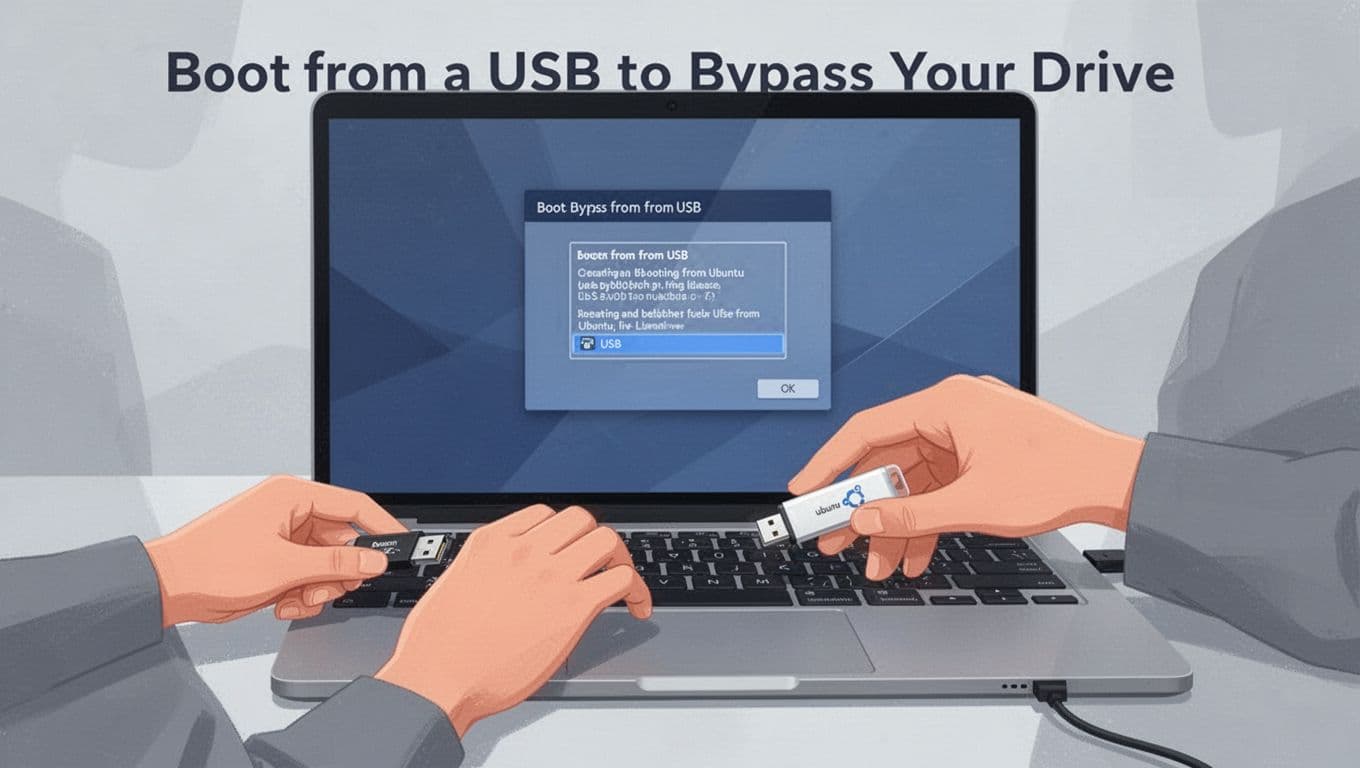
Boot from a USB to Bypass Your Drive
Grab a USB. Download Ubuntu ISO. Rufus makes it bootable. Restart. Enter BIOS (F2 or Del). Set USB first. Save exit. If Ubuntu flies, hardware ok. Reinstall OS or wipe drive. This test rules out all software doubts.
These steps form your toolkit for any glitch. Practice on minor slowdowns. Build speed and confidence. Log fixes for next time. Call pros for hardware dies, loud noises, or warranty needs.
Share your win in comments. What glitch did you fix? Subscribe for more 2026 tips. You handle tech now, no experts required.