
You sit down to stream your favorite show. The video buffers endlessly. Or you join a video call, and it drops mid-sentence. Wi-Fi connection problems at home frustrate everyone. In March 2026, Xfinity users face packet loss every few minutes, often from local line issues or modem glitches. The new FCC ban on foreign-made routers adds worry, though your current gear stays safe.
These issues hit hard because homes rely on steady internet. Windows or Mac updates sometimes clash with networks too. But you can fix most problems yourself. No expert skills required. This guide walks you through simple steps. Start with quick checks. Then tackle no-internet errors, slow speeds, and glitches. You’ll save time and avoid tech support calls.
Follow along, and your home Wi-Fi runs smooth again.
Start Here: Quick Checks That Fix 80% of Wi-Fi Problems
Most Wi-Fi woes stem from temporary glitches. Restarting clears them fast. These steps solve issues for most folks right away. Test your connection after each one. If speeds improve or pages load, stop there.
Xfinity reports show packet loss since mid-March. Check your ISP app first. Or visit sites like Downdetector’s Xfinity map for local outages.
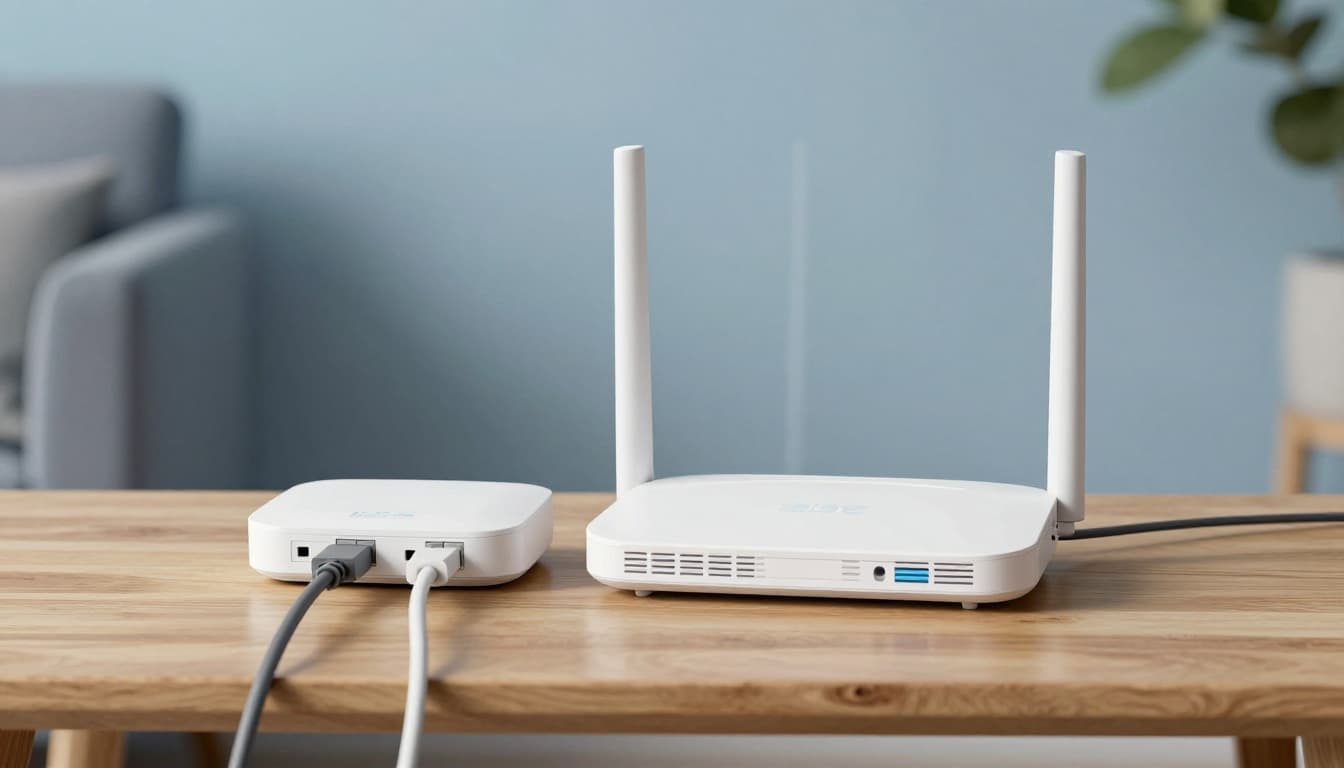
Restart Your Router the Right Way
Power cycles refresh everything. Unplug your modem and router. Wait 30 seconds. Plug the modem back in first. Give it two minutes to connect. Then plug in the router.
This clears firmware overloads. It resets connections too. Neighbors’ Xfinity packet loss often fixes with a modem swap like XB10 to XB8. But restarts work for daily hiccups. Do this weekly.
Run Your Device’s Troubleshooter
Devices have built-in tools. On Windows, go to Settings. Click Troubleshoot. Select Internet Connections. Let it run and apply fixes.
Mac users hold Option. Click the Wi-Fi icon. Choose Open Wireless Diagnostics. Follow prompts. Or forget the network. Rejoin with your password.
These scan for errors. They fix IP issues often. Test a site like google.com next.
Fix ‘Connected to Wi-Fi But No Internet’ Once and For All
This error shows on Windows or Mac. You connect, but sites won’t load. DNS cache or IP conflicts cause it. In 2026, updates worsen some cases. Steps below resolve it.
Run commands as admin. Open Command Prompt. Type each, hit Enter. Restart after.
First, common fixes appear in guides like Make Tech Easier’s Windows troubleshooting.
Flush DNS and Reset Network Settings
Bad DNS cache blocks sites. On Windows, type ipconfig /flushdns. Then netsh winsock reset. Also netsh int ip reset.
Mac uses Terminal. Enter sudo dscacheutil -flushcache. Restart.
These clear junk data. Change DNS to Google’s: 8.8.8.8 and 8.8.4.4. Go to network settings. It bypasses ISP DNS problems.
If no luck, reset network fully. Windows: Settings > Network & Internet > Network reset.
Update Drivers and Check for OS Updates
Outdated drivers fail after updates. Open Device Manager. Expand Network adapters. Right-click yours. Update driver.
Check for Windows updates too. Install them. But pause if a recent one caused issues. Roll back via Settings.
Firmware bugs hit in 2026. These steps patch most. Call your ISP if it lingers.
Boost Slow Speeds and Stop Random Drops
Slow loads and drops annoy during work or gaming. Interference from microwaves or neighbors clogs signals. Too many devices overload routers.
Place your router central. Test speeds at speedtest.net. Wired Ethernet confirms if Wi-Fi specific.
Wi-Fi 7 gear clashes with old setups now. FCC rules slow new buys.
Find the Perfect Spot for Your Router
Keep it high and central. Avoid walls, microwaves, or baby monitors. These block 2.4GHz signals.
Elevate on a shelf. Face open space. Distance from cordless phones helps. Speeds double in good spots.
Test rooms with your phone. Move until coverage evens out.
Switch Bands and Scan for Clear Channels
Use 5GHz for speed near the router. It ignores some interference. 2.4GHz reaches farther.
Apps spot crowded channels. Try NetSpot’s Wi-Fi analyzer for Windows. Pick the least busy one.
Log into router at 192.168.1.1. Set channel manually. Update firmware there too.
Sort Out Router Glitches and Interference
Overheating or old settings cause flakes. Factory resets fix deep issues. Test by disabling VPN or firewall one by one.
Mesh systems help big homes. But start simple.
Reset Your Router Without Losing Everything
Backup settings first. Log into the admin page. Note your password and SSID.
Press reset button 10 seconds. Or use the app. Re-setup takes five minutes.
It wipes glitches. Neighbors’ signals interfere less after.
Spot and Stop Interference from Neighbors
Scan channels with apps. Switch to less crowded ones. Wi-Fi 6E avoids overlaps.
Disable unused router features. Improve airflow to cool it. Over 60% of routers face ban worries, but updates keep yours going.
Prevent Wi-Fi Woes from Coming Back
Restart weekly. Use WPA3 password. Enable auto-firmware updates. Monitor via ISP app.
Keep devices updated. Test after. Mesh covers large spaces.
For Xfinity, check outage guides like API Status Check. Call pros if lines fail.
Reliable Wi-Fi starts with habits.
Restarts, DNS flushes, smart positioning, and updates fix most home Wi-Fi problems. Try steps in order. Your network stabilizes fast.
What fixed your connection? Share below. Subscribe for more tips. Enjoy buffer-free streaming in 2026.